Overview Dashboard
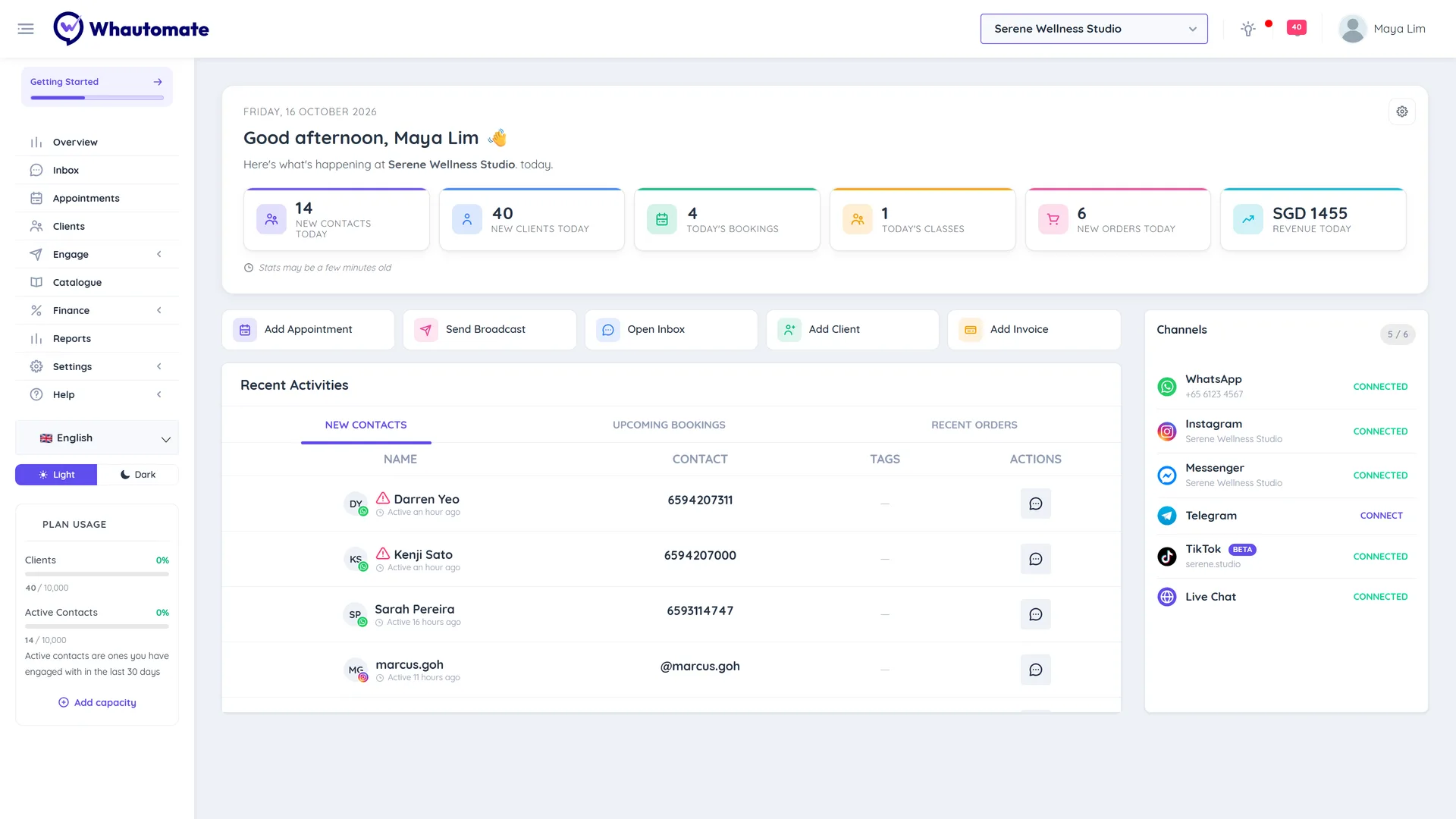
The Overview dashboard is the first page you see after logging in. It shows what is happening today in the workspace you are in, gives you shortcuts to everyday tasks, and warns you when something needs attention, such as a WhatsApp billing problem or a plan limit you are about to reach.
Open it any time from Overview at the top of the sidebar.
Today's numbers
The top of the dashboard greets you and shows tiles with today's figures for the current workspace. Click a tile to open the related page.
| Tile | What it counts | Opens | Shown when |
|---|---|---|---|
| New contacts today | Contacts created today | Contacts | You have communication access |
| New clients today | Clients created today | Clients | CRM Suite, and you have client access |
| Today's bookings | Appointments starting today, not counting cancelled ones | Appointments | Bookings |
| Today's classes | Classes starting today | Appointments | Bookings |
| New orders today | Orders placed today | Orders | Sales, and you have finance access |
| Revenue today | Payments received today | Payments | Bookings or Sales, and you have finance access |
"Today" is based on your account timezone. Team members with the Practitioner/Staff role see My bookings today and My classes today, which count only their own.
The tiles refresh about every 5 minutes, so a booking or payment made a moment ago can take a few minutes to appear.
Choose which tiles you see
- Click the settings icon (Customise tiles) at the top right of the dashboard.
- Under Show tiles, tick the tiles you want, or Select all.
- Click Save.
Your choice is personal and does not change what other team members see.
Quick actions
Below the tiles, buttons take you straight to common tasks: Add Appointment, Send Broadcast, Open Inbox, Add Client and Add Invoice. You only see the buttons for modules in your plan and areas your role can use.
Recent Activities
The Recent Activities card has up to three tabs:
- New Contacts: the latest contacts, with their channel, phone or username, tags and a Message Contact button.
- Upcoming Bookings: the next appointments with Booked Time, Client/Info, Service and Staff (Bookings).
- Recent Orders: the latest orders with their number, date, client, amount and status. Filter by status (Sales).
Alerts and plan usage
The dashboard can show these cards when they apply:
- WhatsApp billing: Action required: WhatsApp template messages are failing due to a billing issue on your Meta account. Click Fix billing to update your payment method with Meta. See WhatsApp Payment Method.
- AI credits: Action required: AI replies are failing because your OpenAI account is out of credits. Click Add credits to top up your OpenAI account. See OpenAI.
- Plan usage (owners and administrators): You're growing fast or Action recommended when you have used 75% or more of your clients or active contacts, or have fewer than 100 AI or email credits left. Click Upgrade or Top up.
- Trial: during a free trial, a card to book a call with our team, and an Upgrade button.
Channels
The Channels card shows whether WhatsApp, Instagram, Messenger, Telegram, TikTok and Live Chat are Connected for this workspace. Click Connect to set up a channel. See Connect a Communication Channel.