Invoices Report
The Invoices report adds up the invoices in a date range: how much you billed, how much was paid, what is still owed and what was refunded. Filter it to the unpaid invoices to chase payments, or by team member to see who billed what.
Before you start
- You need access to Reports and to Finance. Owners, Administrators and the Accountant/Finance Manager role have both unless No Finance Module Access or No Report Module Access is ticked for them. See Roles and Permissions.
- The report covers the workspace you are in.
Run the report
- In the sidebar, click Reports. Under Revenue, click Invoices.
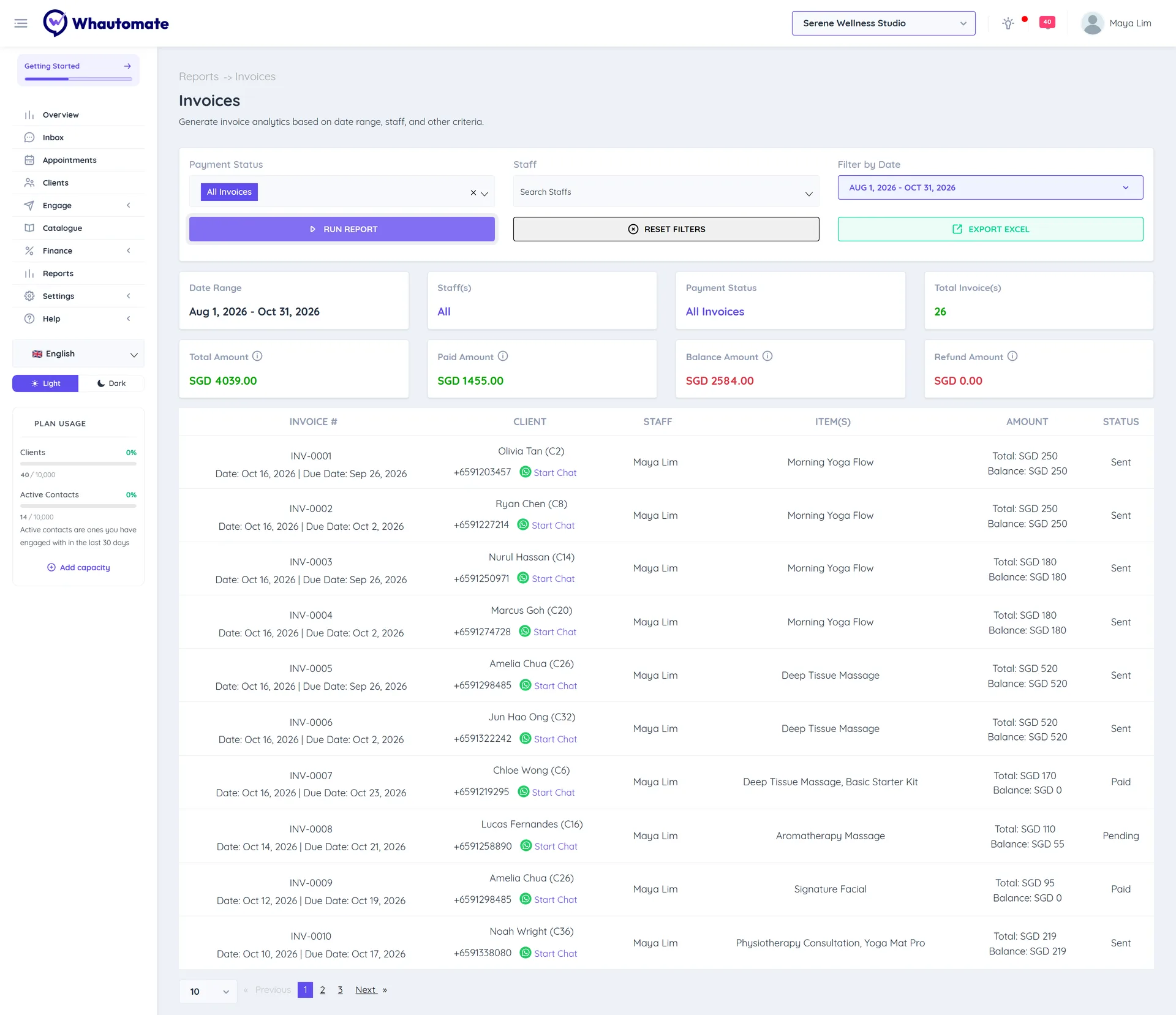
- Set the filters:
- Payment Status: All Invoices, Only Paid Invoices, Only Partially Paid Invoices, All Unpaid Invoices or All Refunded Invoices.
- Staff: one or more team members.
- Filter by Date: This Month (the default), Last Month, Last 3 Months, Last 6 Months or your own dates.
- Click Run Report.
Read the report
The summary cards show:
- Total Invoice(s): how many invoices match.
- Total Amount: the invoiced amount, including taxes.
- Paid Amount: what has been paid.
- Balance Amount: what is still to be paid.
- Refund Amount: what was refunded.
The list shows each invoice's INVOICE #, date and due date, CLIENT, STAFF, ITEM(S), AMOUNT (with balance and refunded amounts) and STATUS, such as Draft, Pending, Sent, Paid, Void, Refunded or Partial Refund. Click Start Chat to message the client about an invoice.
Export to Excel
Click Export Excel to download the invoices that match your filters, up to 2,500 rows.
Tips
- To chase payments, choose All Unpaid Invoices and Last 3 Months, then use Start Chat or send a payment request. See Invoice and Payments.
- For money received across invoices, bookings and the store, use Sales & Payments. See Payments.