Classes Report
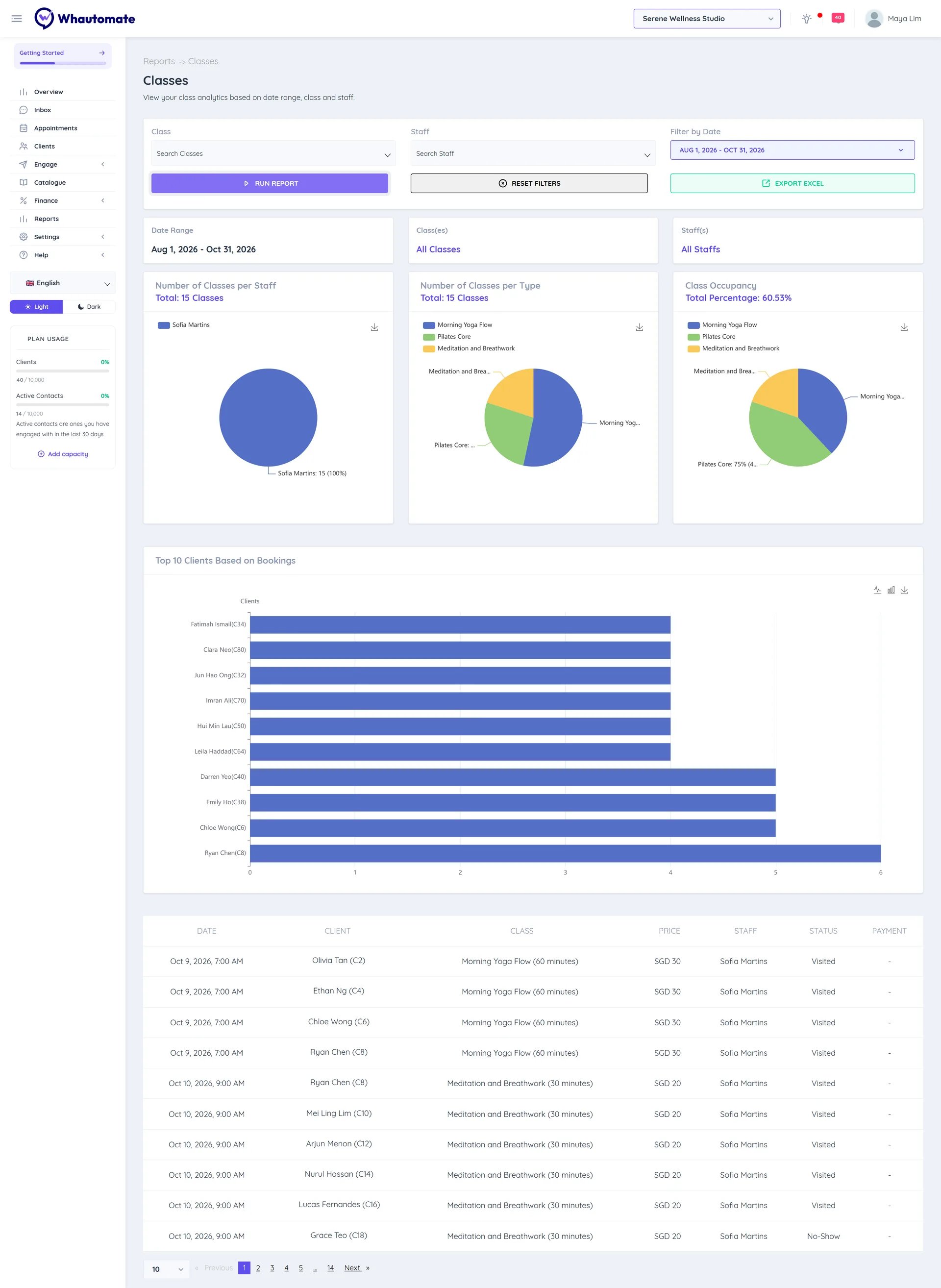
The Classes report shows how your classes are doing: how many ran, who taught them, how full they were and which clients book most. Use it to spot classes that are always full (add another session) or nearly empty (change the time or merge them).
Before you start
- You need access to Reports (Owner, Administrator or Accountant/Finance Manager). See Who can see reports.
- The report covers the workspace you are in.
Run the report
- In the sidebar, click Reports. Under Bookings, click Classes.
- Set the filters:
- Class: one or more classes, or all.
- Staff: one or more team members, or all.
- Filter by Date: This Month (the default), Last Month, Last 3 Months, Last 6 Months or your own dates.
- Booked From: Select All, or only bookings made on WhatsApp, Telegram, the Online Portal, the Admin Portal (your team in Whautomate) or the API.
- Click Run Report.
Read the report
- Number of Classes per Staff: how many classes each team member ran, with the total.
- Number of Classes per Type: how many sessions of each class ran, with the total.
- Class Occupancy: how full your classes were, as a percentage of capacity, with the Total Percentage.
- Top 10 Clients Based on Bookings: the clients who booked the most classes.
- The participant list: each booking's DATE, CLIENT, CLASS, PRICE, STAFF, STATUS, PAYMENT (for example Paid Online, Invoiced or Redeemed credits) and BOOKED FROM.
Each chart has a save button to download it as an image.
Export to Excel
Click Export Excel to download the class participants that match your filters, up to 2,500 rows.