Appointments Report
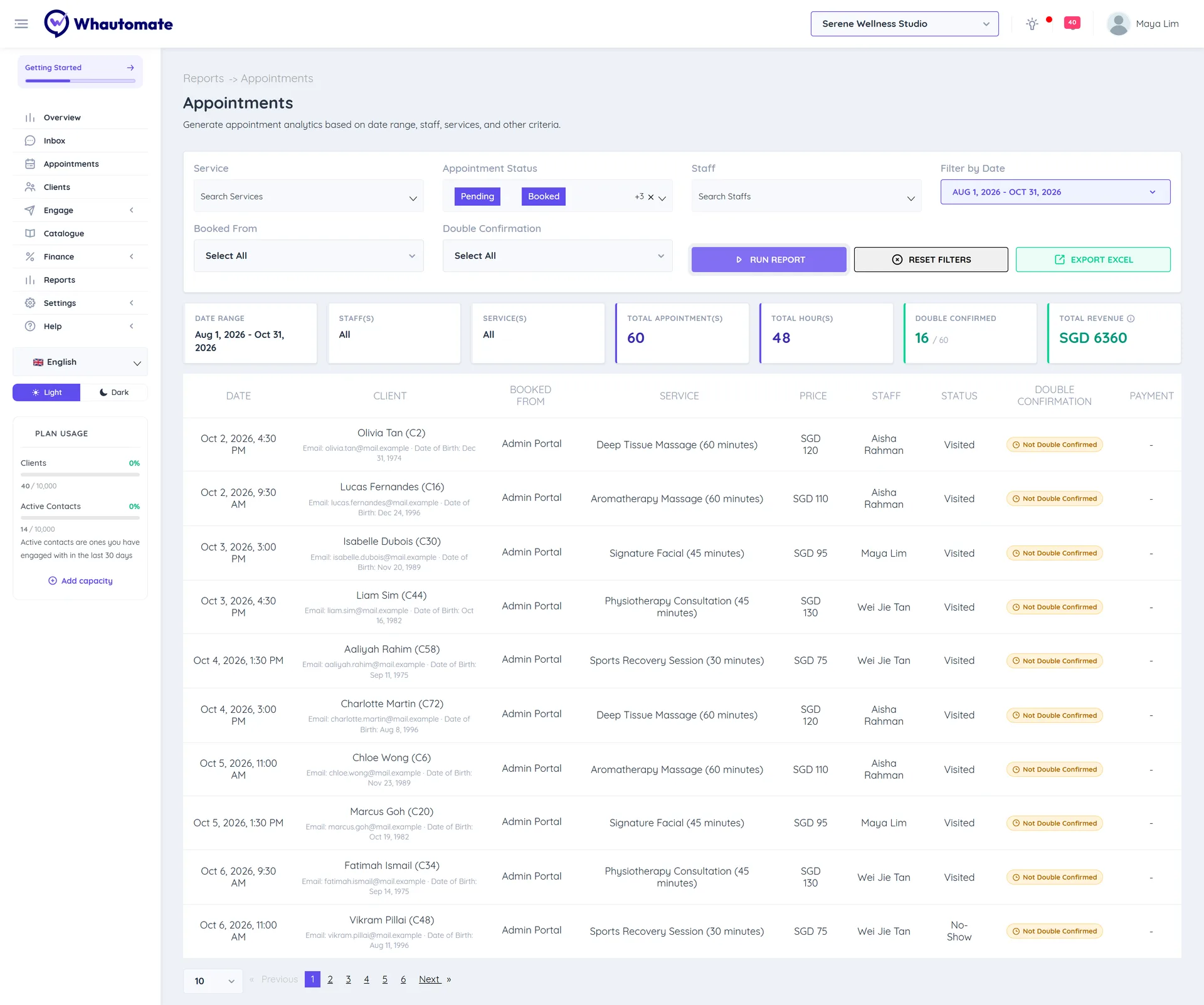
The Appointments report lists every appointment in a date range with totals for appointments, hours and revenue. Filter it by service, status, team member and where the booking came from, to answer questions like "how many no-shows did we have last month?" or "how many bookings came from WhatsApp?".
Before you start
- You need access to Reports (Owner, Administrator or Accountant/Finance Manager). See Who can see reports.
- The report covers the workspace you are in.
Run the report
- In the sidebar, click Reports. Under Bookings, click Appointments.
- Set the filters:
- Service: one or more services, or leave empty for all.
- Appointment Status: for example Booked, Visited, Rescheduled, No-Show or Cancelled.
- Staff: one or more team members.
- Filter by Date: This Month (the default), Last Month, Last 3 Months, Last 6 Months or your own dates.
- Booked From: WhatsApp, Admin Portal (booked by your team), Online Portal (your booking page) or Bulk Import.
- Double Confirmation: Double Confirmed or Not Double Confirmed. Shown when double confirmation is on.
- Click Run Report.
Read the report
The summary cards show the Date Range, the Staff(s) and Service(s) you filtered on, and:
- Total Appointment(s)
- Total Hour(s): the length of all appointments added up.
- Double Confirmed: how many clients confirmed they will attend (when double confirmation is on).
- Total Revenue: the price of the appointments, without tax.
The list shows each appointment's DATE, CLIENT, BOOKED FROM, SERVICE, PRICE, STAFF, STATUS and PAYMENT (for example Paid Online, Invoiced or Redeemed credits).
Export to Excel
Click Export Excel to download the appointments that match your filters, up to 2,500 rows. The file includes the appointment type (Location Visit, Home Visit or Virtual/Online Session) and a column for each booking field you collect.
Tips
- To find no-shows to follow up with, set Appointment Status to No-Show and choose Last Month.
- Compare Booked From values to see whether your WhatsApp bot or booking page brings in more bookings.