xAI (Grok)
Connect xAI to run your AI chatbots and AI Conversation replies on Grok models, using your own API key. Grok can search your documents, read images and search the web. It cannot transcribe voice notes. To compare it with the other providers, see AI providers.
xAI bills you directly for what the AI uses, so add credits in your xAI account.
Before you start
- An account in the xAI console with credits or billing set up.
- You need to be an admin in Whautomate.
Step 1: Create your keys in the xAI console
Grok in Whautomate uses up to two keys:
- API key (required): powers the replies.
- Management key (optional): only needed for knowledge bases. xAI serves knowledge bases from a separate system that does not accept the normal API key.
To create the API key:
- Sign in to the xAI console.
- Open API Keys and create a new key.
- Copy the key.
To create the management key, if you want the AI to answer from your documents:
- In the xAI console, go to Settings > Management Keys > Create Management Key.
- Grant only Collections (Read & Write) and Files (Read & Write). Leave every other endpoint on No access, in particular API Keys, which would let the key create and revoke your other keys.
- Leave Allowed IP Address empty unless you know your server's outbound IP address. A wrong entry makes every knowledge base request fail as if the key were invalid.
- Copy the key.
Step 2: Connect xAI
-
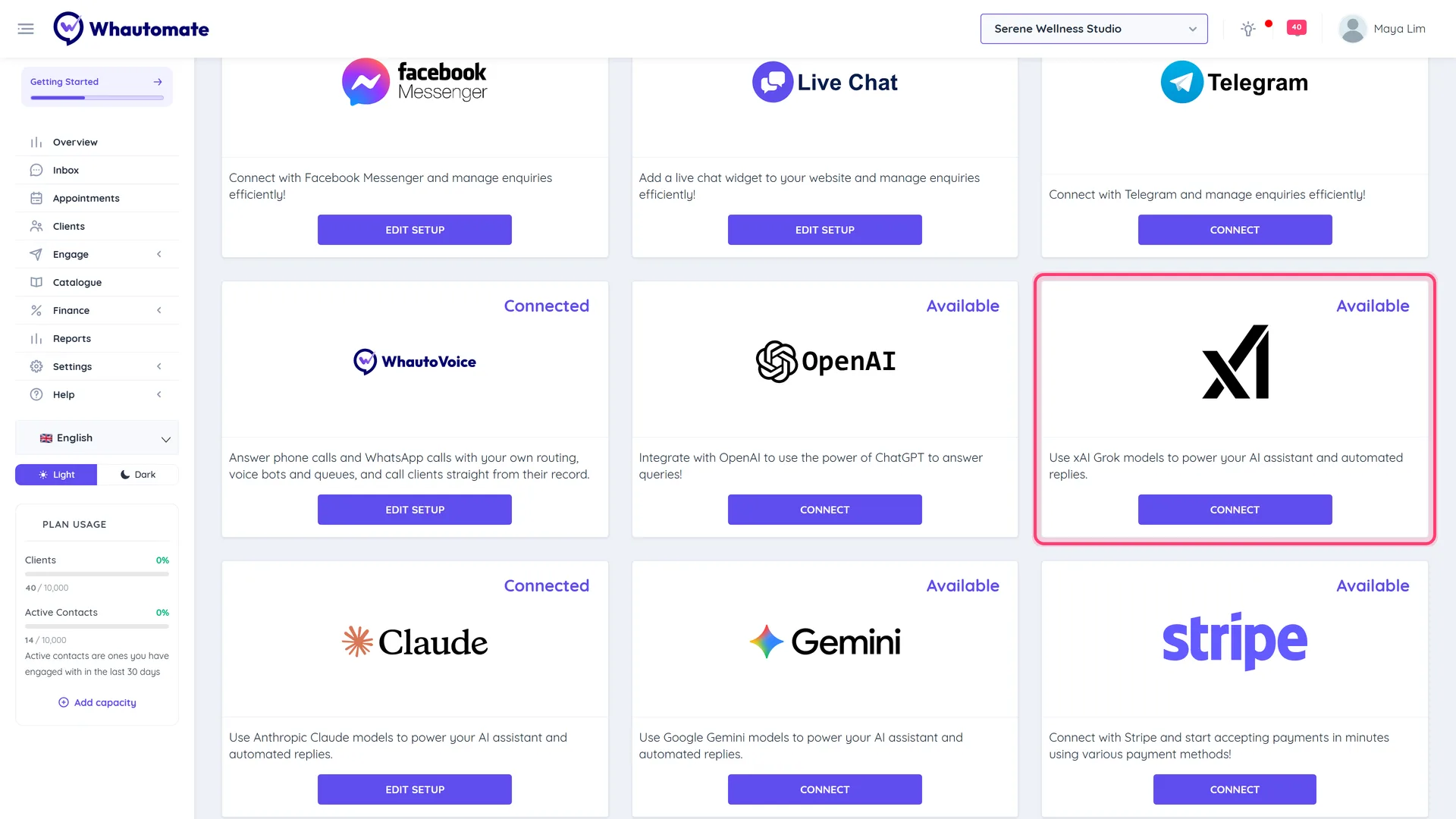
Go to Settings > Integrations and click Connect on the xAI (Grok) card.
-
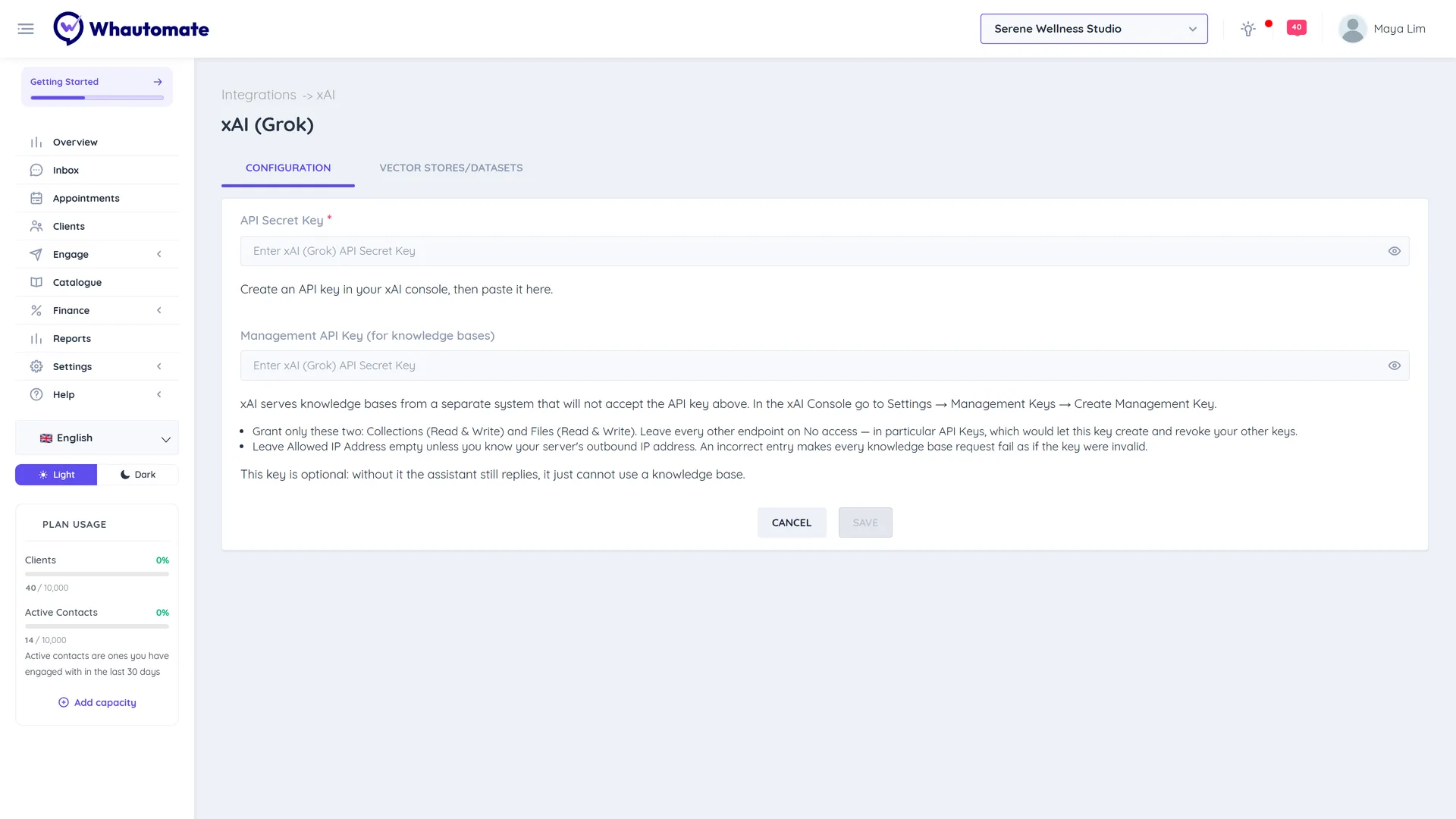
On the Configuration tab, paste the API key into API Secret Key.
-
Optional: paste the management key into Management API Key (for knowledge bases).
-
Click Save. You see The xAI (Grok) configuration is saved successfully!
Without a management key the assistant still replies; it just cannot use a knowledge base. To remove the management key, clear the field and save.
Step 3: Add a knowledge base (collection)
xAI calls knowledge bases collections. In Whautomate they are managed on the Vector Stores/Datasets tab.
- Make sure the management key is saved.
- On the xAI (Grok) page, open the Vector Stores/Datasets tab.
- Click Add Vector Store, enter a Name and click Save.
- Click View & Add Files, then Add File, and choose a file (max 16 MB; PDF, DOC, DOCX, PPTX, TXT, HTML).
- Click Attach.
Things that work differently with xAI:
- xAI chunks files automatically. The chunk settings under Advanced options have no effect, and the Chunking column shows Automatic.
- View File Text shows the file's details (name, type, size, upload time and status), not the text xAI read from it.
Step 4: Use Grok in an automation
- Open the rule with your AI Conversation action and go to its Configuration tab.
- Set AI Provider to xAI (Grok) and pick a Model. The list is loaded live from your xAI account, so new Grok models appear as soon as your key can use them. Use a fast Grok model for routine support and the flagship model for complex conversations.
- Grok models are reasoning models, so Reasoning Model switches on by itself.
- On the Built-in Tools tab, turn on Enable File Search and choose your collection under Knowledge Base.
- Optional: Enable Web Search and Understand images. Search Context Size is not offered for xAI.
- Test it on the Playground tab, then save the rule.
Grok cannot transcribe voice notes, so Understand voice messages is not available and voice messages are handled using their text only. If your customers send many voice notes, use OpenAI or Google Gemini for that rule.
Your key and Whautomate AI credits
AI chatbots and AI Conversation replies on Grok always run on your own xAI key, and xAI bills you; they do not use Whautomate AI credits. The AI credits on your plan cover built-in features such as Generate with AI in the inbox, translation and AI template generation, which do not need an xAI key.
Troubleshooting
- The knowledge base tab shows "An xAI Management API key is required to manage knowledge bases." Create a management key as in Step 1 and save it on the Configuration tab.
- Knowledge base requests fail as if the key were invalid. Check the management key's scopes (Collections and Files, Read & Write) and clear Allowed IP Address in the xAI console.
- The dashboard shows "Action required: AI replies are failing because your OpenAI account is out of credits." This warning appears for whichever provider ran out, even though it names OpenAI. Add credits in the xAI console. It clears after the next successful Grok reply.
- The Vector Stores/Datasets tab says "xAI (Grok) Secret Token is not configured." Save the API key on the Configuration tab first.