How to Change Your WhatsApp Business Display Name
Your WhatsApp Business display name is the name your customers see when you message them. Once your current display name has been approved, you can update it at any time.
Important Notes Before You Begin
- Your display name must represent your business, product, service, or department.
- If you’re using a personal name, make sure it clearly reflects your business (e.g., “John’s Fitness Coaching” instead of just “John”).
- Generic terms (like “Clothing,” “Food,” or “Delhi”) or geographical names alone will not be approved.
- For test or demo accounts, the name should include a clear association with your business.
- Meta will not approve random or custom names that are unrelated to your business.
Steps to Change Your Display Name
Step 1: Update in Meta WhatsApp Manager
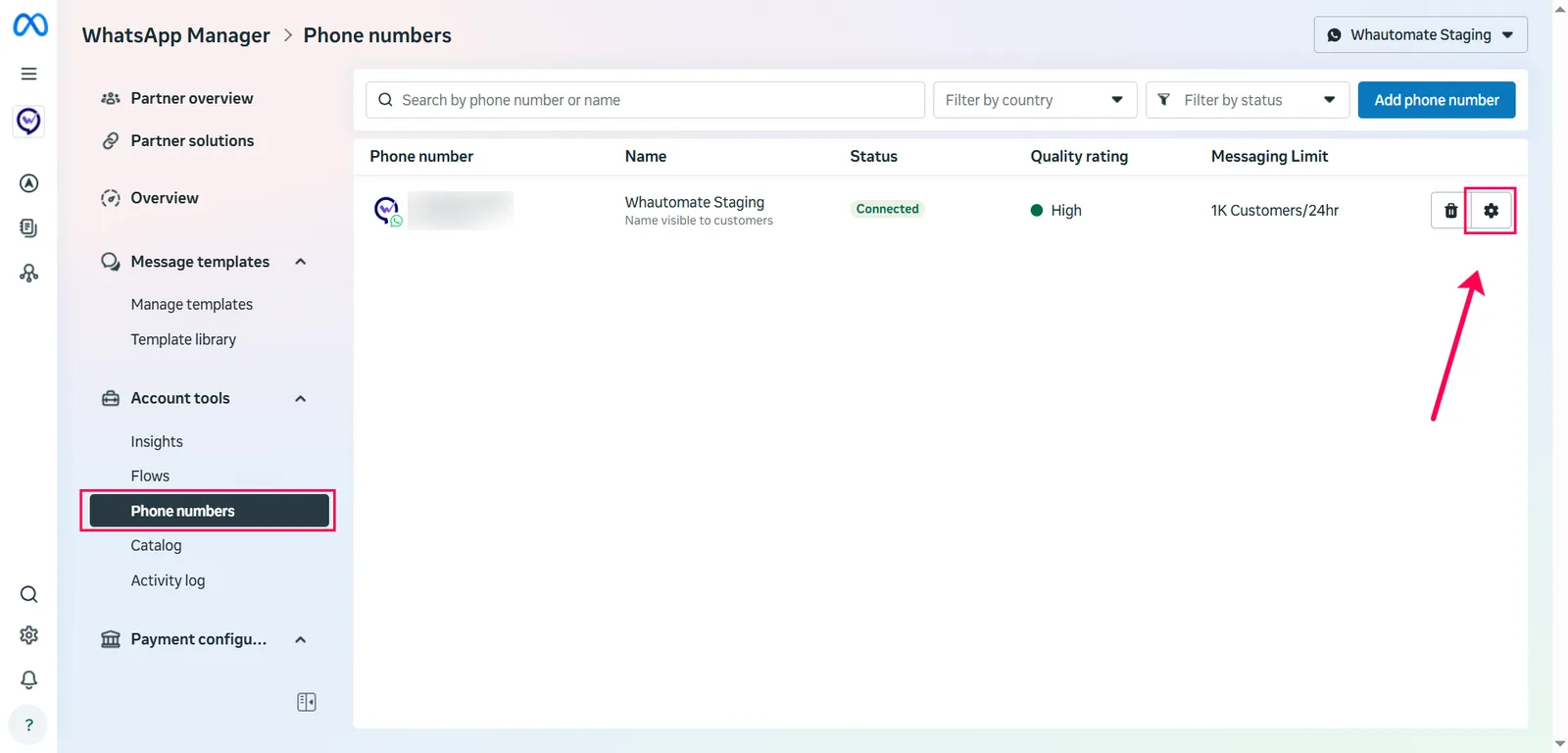
- Go to Meta Business Manager and select your business.
- From the left-hand menu, open Account Tools > Phone Number.
- Click the Settings (⚙️) icon.
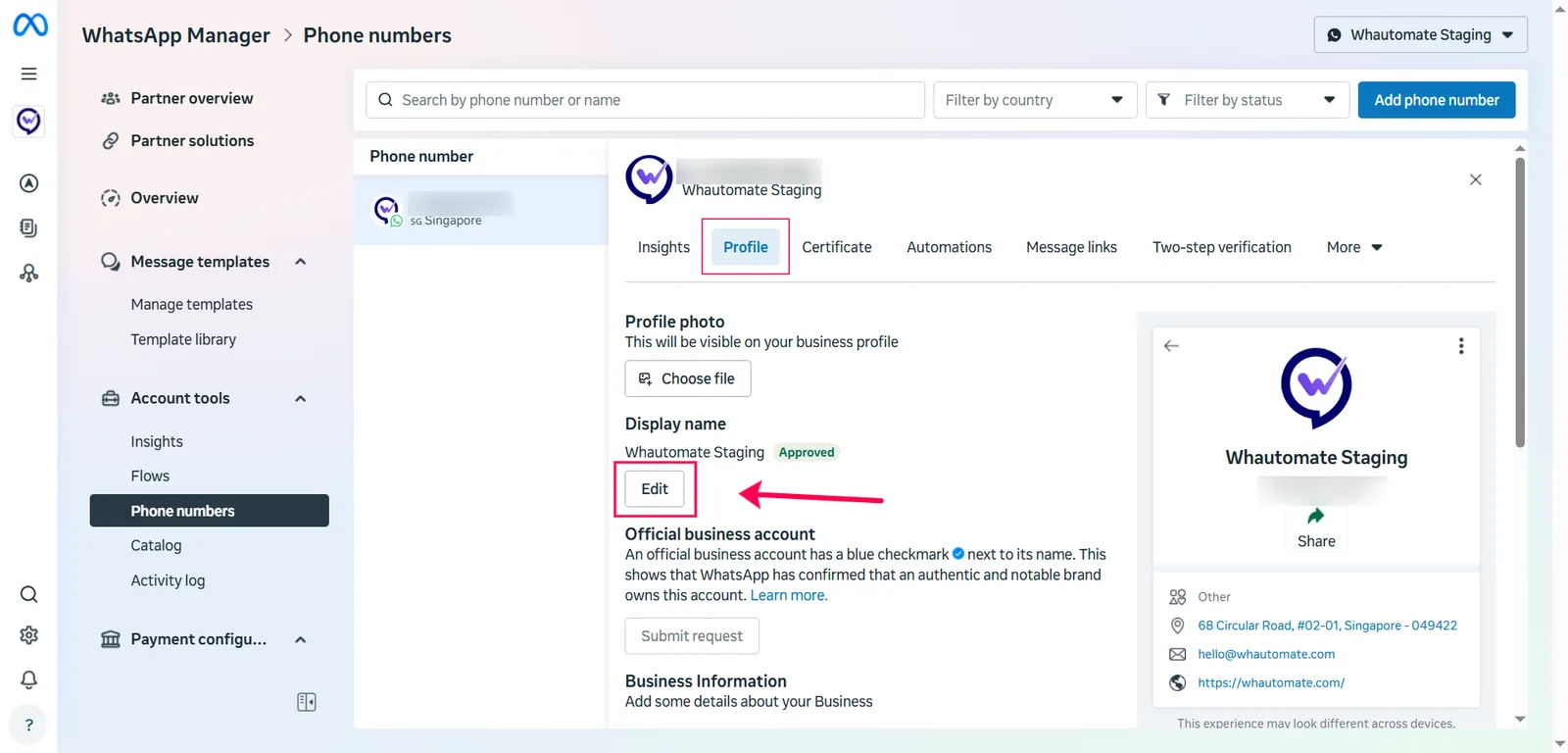
- Go to the Profile tab.
- Click Edit under the Display Name section.
- Enter your new business name (must follow Meta’s approval guidelines).
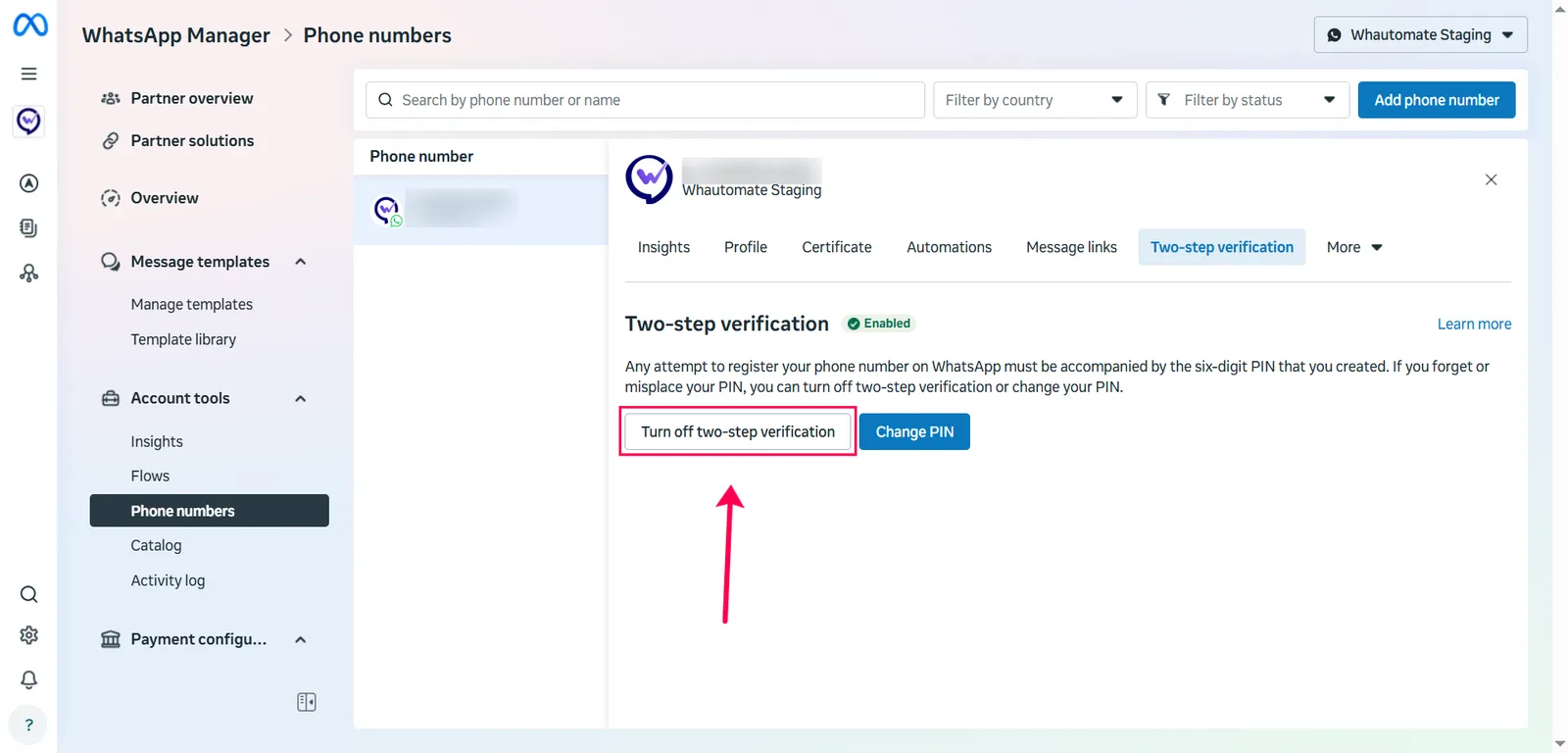
- Navigate to the Two-Step Verification tab.
- If Two-step verification is enabled, turn it off before proceeding.
Step 2: Wait for Approval
- Your new display name will go through Meta’s approval process.
- You’ll receive an email confirmation once your display name is approved and active.
Step 3: Re-register in Whautomate
After approval, update your integration in Whautomate:
- Go to Settings > Integrations.
- Click Edit Setup on the WhatsApp card.
- Find Changed your display name? on the Configuration tab.
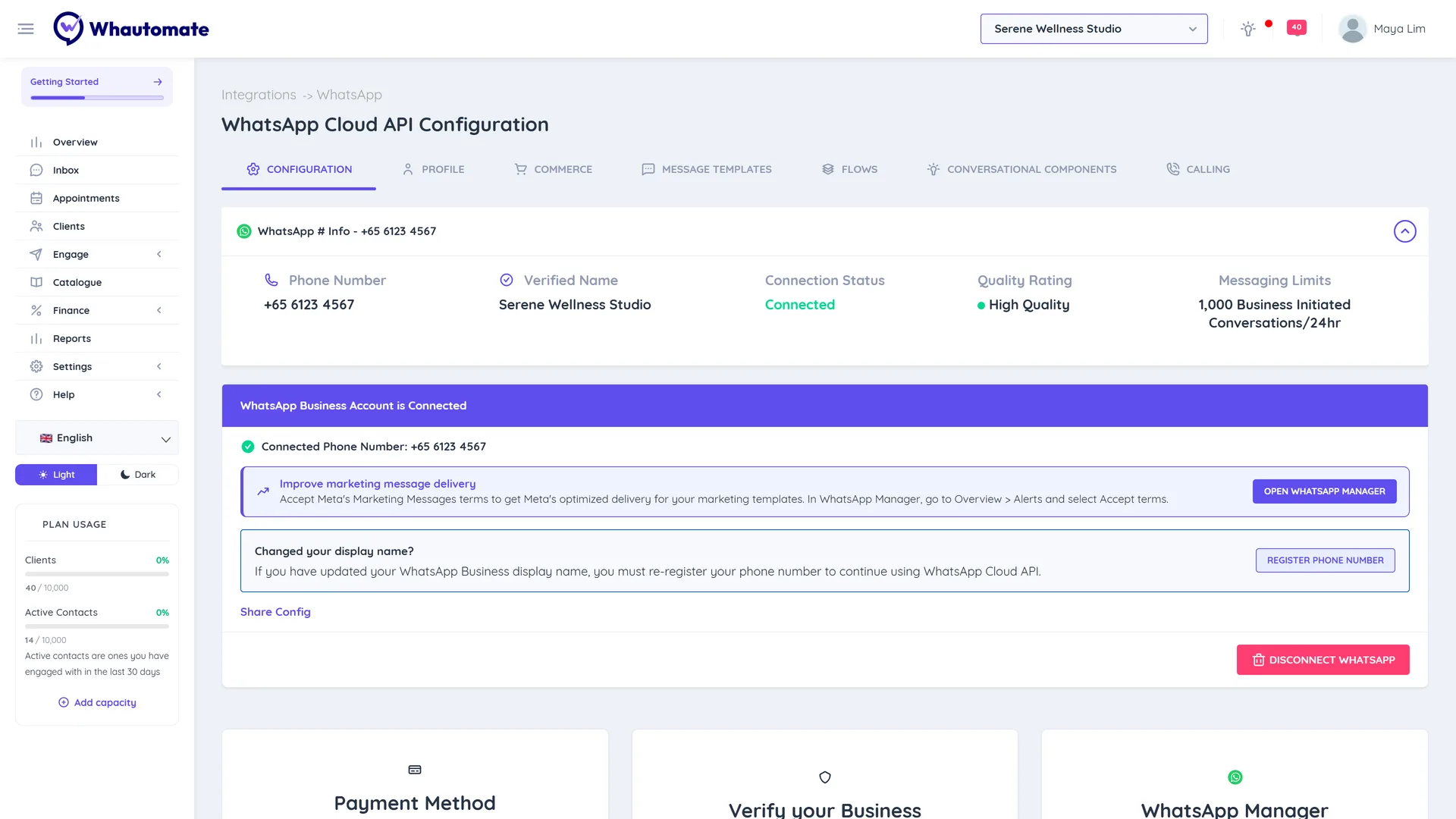
- Click Register Phone Number.
- Under Enter 6-digit PIN, enter any 6-digit number and click Register. You see WhatsApp number registered successfully!
- Once registered, your new display name will reflect immediately.
Re-registration required
If you change your WhatsApp Business display name, you must re-register your phone number in order to continue using the WhatsApp Cloud API.
Your new display name is now visible to customers on WhatsApp.