Google Gemini
Connect Google Gemini to run your AI chatbots and AI Conversation replies on Gemini models, using your own API key from Google AI Studio. Gemini is multimodal: it understands voice notes and images natively, searches your documents and can search the web. Its Flash models are fast and low cost, which suits high-volume WhatsApp and Instagram support. To compare it with the other providers, see AI providers.
Google bills you directly for what the AI uses.
Before you start
- A Google account with access to Google AI Studio.
- Billing set up for the Google Cloud project behind your key. Free-tier keys have tight limits that a live chatbot quickly reaches.
- You need to be an admin in Whautomate.
Step 1: Create an API key in Google AI Studio
- Sign in to Google AI Studio.
- Click Get API key, then Create API key, and choose or create a Google Cloud project.
- Copy the key.
Step 2: Connect Gemini
-
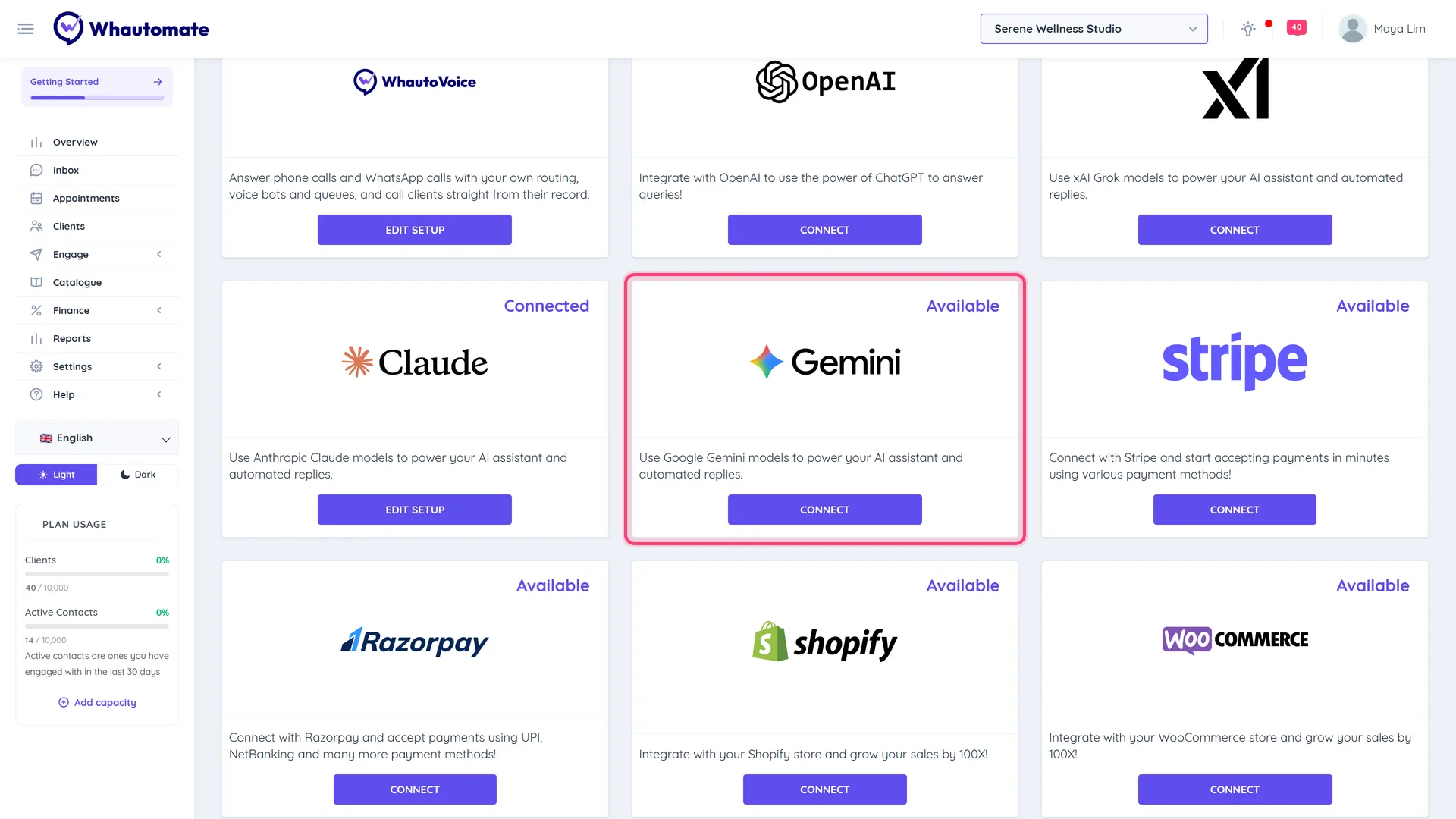
Go to Settings > Integrations and click Connect on the Google Gemini card.
-
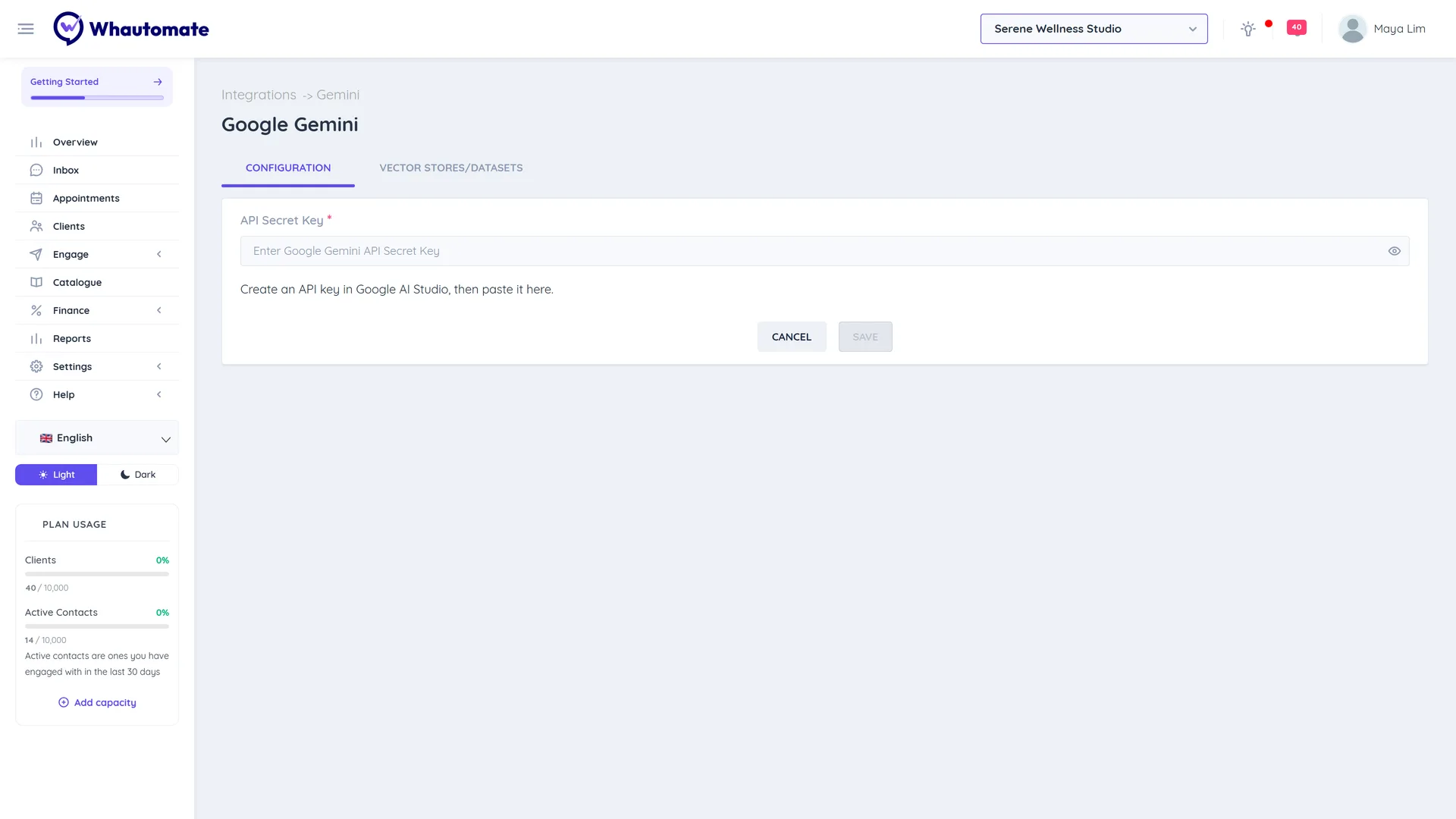
On the Configuration tab, paste the key into API Secret Key.
-
Click Save. You see The Google Gemini configuration is saved successfully!
The card on the Integrations page now shows Connected. To change the key later, click Edit Setup.
Step 3: Add a knowledge base
Gemini stores your documents in its own File Search stores. In Whautomate they are managed on the Vector Stores/Datasets tab, the same way as for the other providers.
- On the Google Gemini page, open the Vector Stores/Datasets tab.
- Click Add Vector Store and enter a Name (for example "Customer FAQ").
- Optional: open Advanced options to choose the Embedding model: Text and images (recommended) or Text only. Keep the recommended option unless you have a reason to change it.
- Click Save.
- Click View & Add Files on the knowledge base, then Add File, and choose a file (max 16 MB; PDF, DOC, DOCX, PPTX, TXT, HTML).
- Click Attach.
The Embedding model is chosen once, when the knowledge base is created, and cannot be changed later. To switch, create a new knowledge base and upload the files again.
Things that work differently with Gemini:
- Chunk size is capped at 512 tokens. Under Advanced options on Attach File, Chunk size (tokens) goes up to 512 and Chunk overlap (tokens) up to 256. Leave the defaults (512 and 100) and Gemini chunks the file automatically.
- View File Text shows the file's details (name, type, size, upload time and state), not the text Gemini read from it.
Step 4: Use Gemini in an automation
- Open the rule with your AI Conversation action and go to its Configuration tab.
- Set AI Provider to Google Gemini and pick a Model. The list is loaded live from your key, so new Gemini models appear as soon as your key can use them. A Flash model is a good default for customer chats; Flash-Lite is the cheapest for simple questions, and Pro reasons more deeply at a higher price.
- Gemini models are reasoning models, so Reasoning Model switches on by itself. Use Reasoning Effort to trade depth for speed.
- On the Built-in Tools tab, turn on Enable File Search and choose your knowledge base under Knowledge Base.
- Optional: Enable Web Search, Understand voice messages and Understand images. Gemini handles voice notes and images with the same multimodal model, so the Transcription Model and Vision Model can both be a Flash model.
- Test it on the Playground tab, then save the rule.
Your key and Whautomate AI credits
AI chatbots and AI Conversation replies on Gemini always run on your own Google key, and Google bills you; they do not use Whautomate AI credits. The AI credits on your plan cover built-in features such as Generate with AI in the inbox, translation and AI template generation, which do not need a Gemini key.
Troubleshooting
- The dashboard shows "Action required: AI replies are failing because your OpenAI account is out of credits." This warning appears for whichever provider ran out, even though it names OpenAI. Check billing and quota for your key in Google AI Studio. Short per-minute rate limits do not trigger it. The warning clears after the next successful Gemini reply.
- The Vector Stores/Datasets tab says "Google Gemini Secret Token is not configured." Save your key on the Configuration tab first, or click Go to Configuration.
- A file stays failed or never becomes active. Delete it and upload it again. If a knowledge base keeps failing, create a new one with the recommended Text and images embedding model.
- The model list is empty or shows an error. The key is wrong or the Generative Language API is not enabled for its project. Create a new key in Google AI Studio and save it again.