Shipping
Shipping options are the delivery choices clients pick at checkout, such as "Standard delivery (3-5 days)" or "Express". Each option charges a flat fee or a fee based on the order value, so you can offer free shipping above a set amount. Set up shipping before you sell physical products in your online store or on WhatsApp.
Turn on shipping
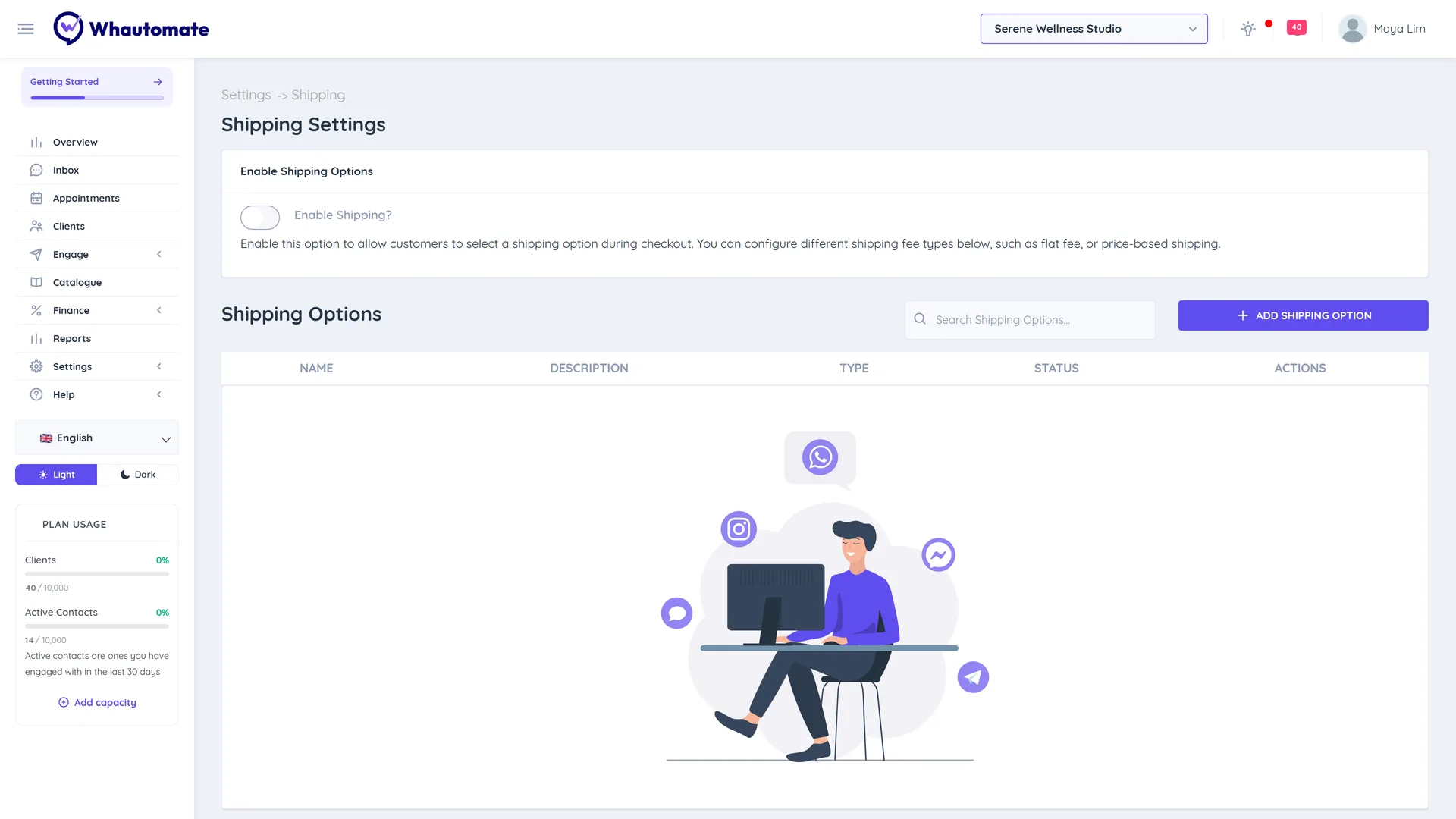
- Go to Settings and, under Finance, click Shipping.
- Under Enable Shipping Options, turn on Enable Shipping?.
When shipping is on, clients choose a shipping option at checkout, and your team can pick one on invoices that create an order.
Add a shipping option
- Click Add Shipping Option.
- Enter a Name and a Description (Est. Delivery Time), for example "Delivered in 3-5 working days".
- Choose the Pricing Type:
- Flat Fee: enter one Price. Set it to 0 to offer free shipping.
- Price Based: under Price Ranges, enter a Min, Max and Fee for each range. Click Add Range for more. Leave Max empty for "and above".
- Make sure Status is on and click Save.
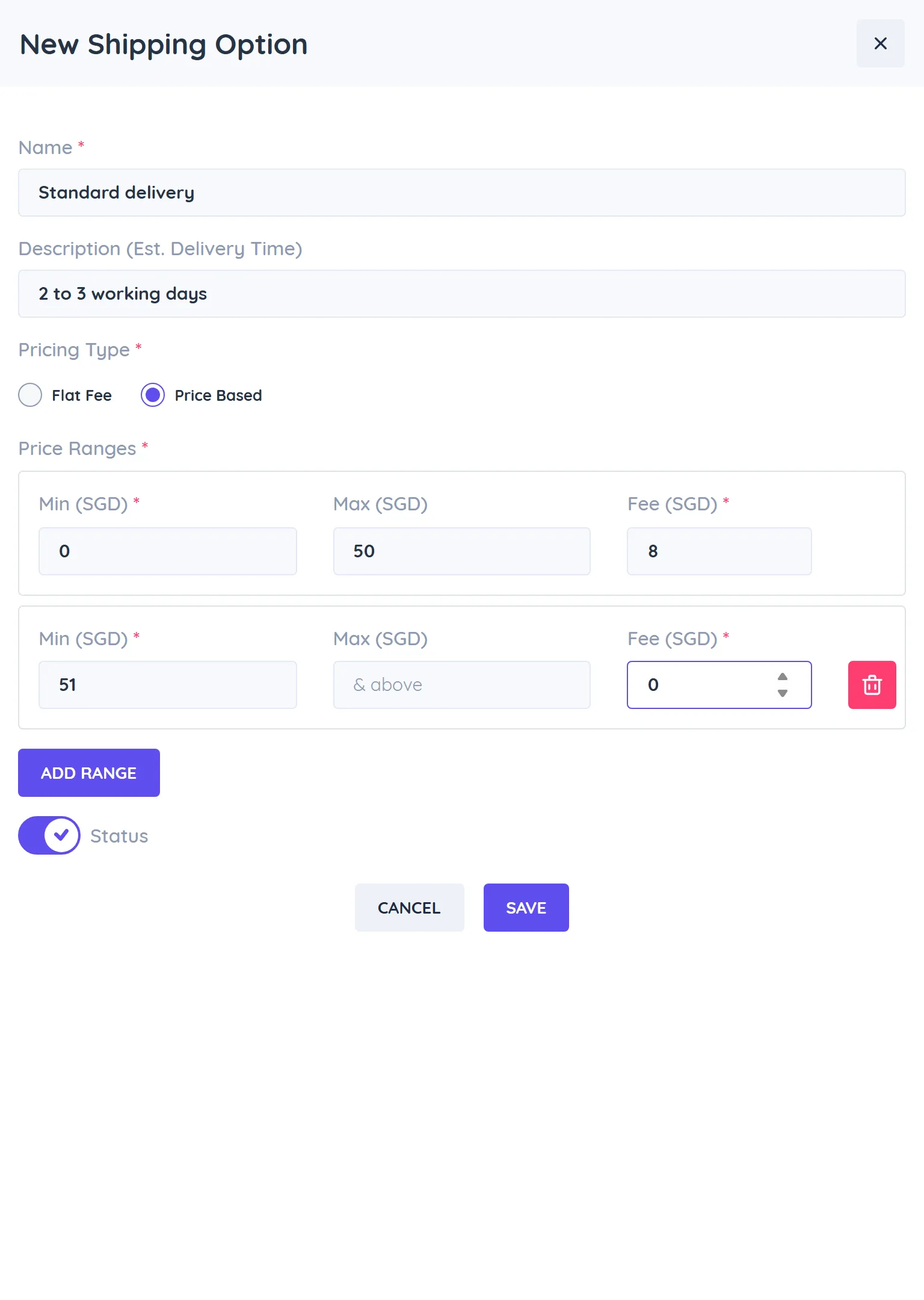
Example price-based option: 0 to 50 costs 8, 51 and above is free.
Manage shipping options
The Shipping Options list shows NAME, Description, Type and Status. Search options, switch Status to hide or show an option, or click Edit Shipping Option.
Related
- Orders
- Invoice settings (shipping details on invoices)
- Products & Inventory