Orders
Orders track products you need to deliver to clients. An order is created when a client buys from your online store, checks out from your WhatsApp catalog or chatbot, orders in your Telegram mini app, or when your team creates an invoice with Create Order For Client turned on. Use the Orders page to move each order through processing, shipping and delivery, and to keep clients informed automatically.
Before you start
- Add your products in Products & Inventory.
- Optional: set up shipping options and a payment gateway.
Order statuses
| Status | When to use it |
|---|---|
| Pending | Created, payment not complete (or only part paid). |
| Paid | Payment received. |
| Processing | You are preparing the order. |
| Shipping | Handed to the courier. |
| Partially Delivered / Delivered | Some or all items reached the client. |
| Partially Completed / Completed | Some or all of the order is done. An order is also set to Completed when its invoice is fully paid. |
| Cancelled | Cancelled, for example when the invoice is voided. |
| Refunded | Money returned to the client. |
View orders
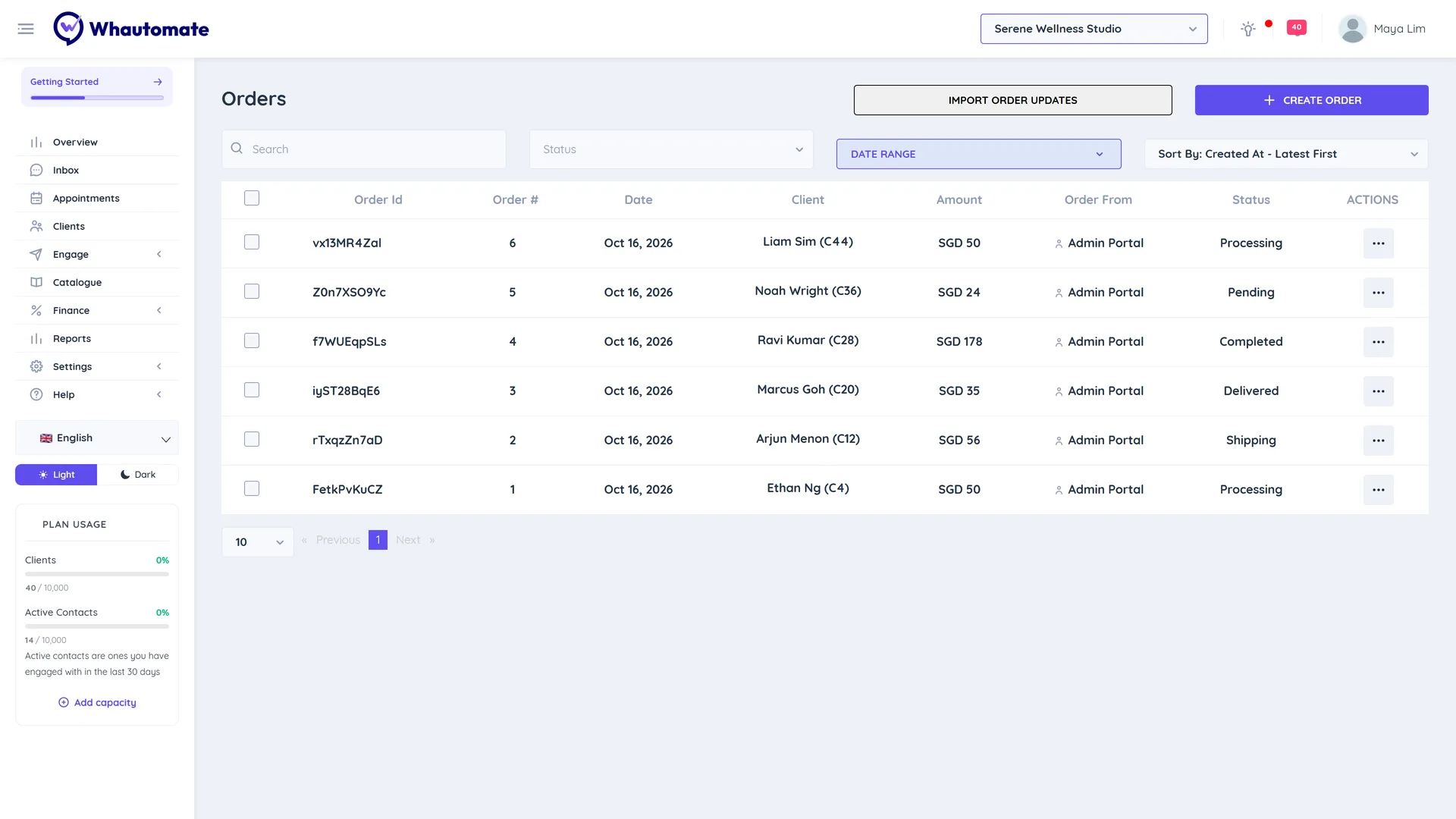
Go to Finance > Orders. The list shows Order Id, Order #, Date, Client, Amount, Status and Order From (Online Store, WhatsApp, Telegram or Admin Portal). Filter with Search, Status and Date Range, and change the order with Sort By.
Create an order
- On Finance > Orders, click Create Order.
- A new invoice opens with Create Order For Client already on. Pick the client, click Add item and pick products (the Products tab narrows the list), and choose the Shipping Address and shipping option.
- Save the invoice. See Invoice & Payments.
Update an order's status
- Click More Actions on the order and choose Update Order Status.
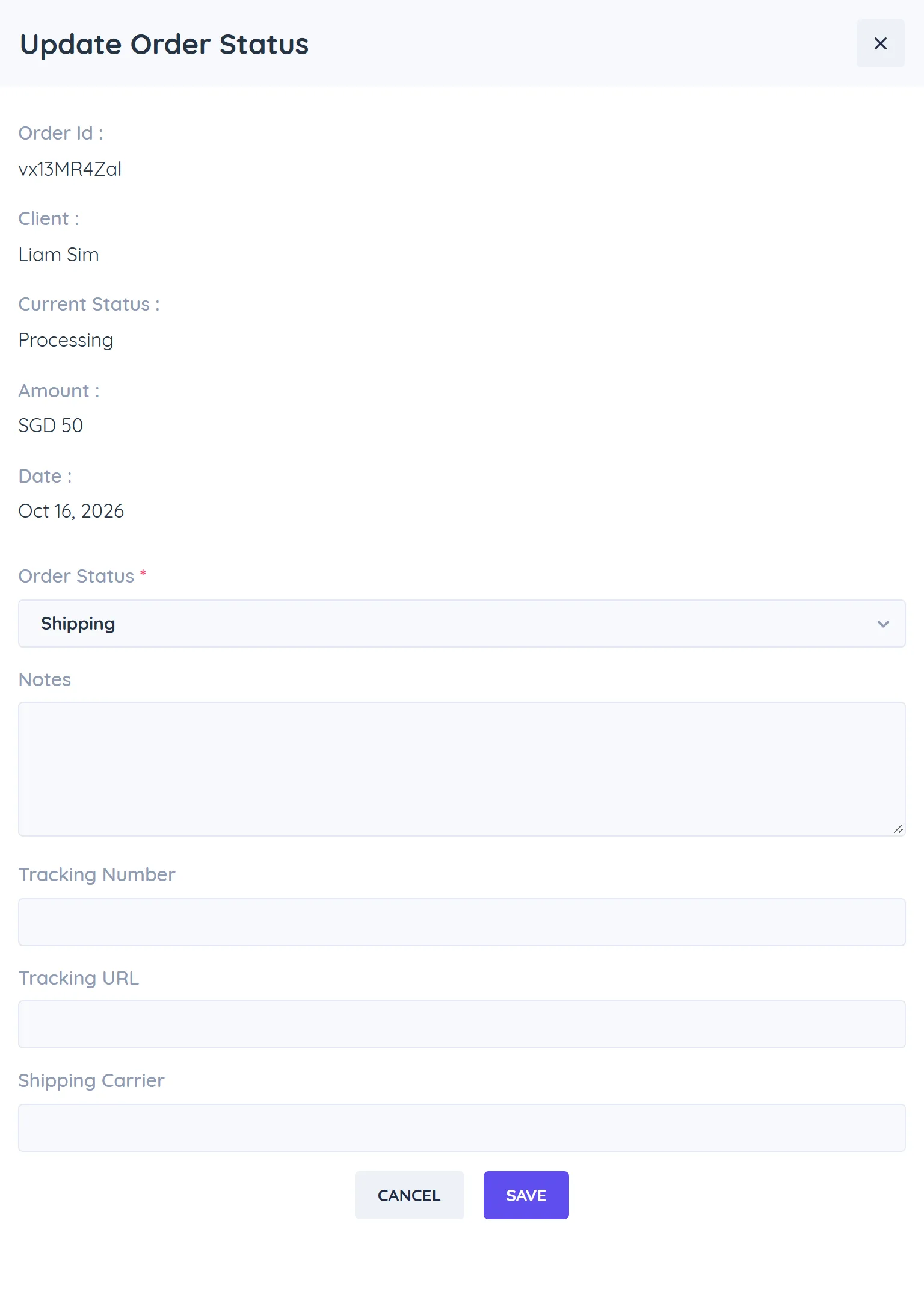
- Check the Order Id, Client, Current Status and Amount.
- Pick the new Order Status and add Notes if needed.
- To add delivery details, click Update Shipping Info and enter the Tracking Number, Tracking URL and Shipping Carrier.
- Click Save.
Pending and Paid are set by payments, so you cannot pick them here. Setting an order to Cancelled does not put products back in stock; void or refund the order's invoice to restock.
If you have an Order Updates automation, the client gets a WhatsApp, email or SMS update with the new status and tracking link. See Automate Order Updates.
To send different messages by where the order came from, add the Ordered From condition to the automation (Admin Portal, Online Store, WhatsApp, Telegram or API).
Other order actions
From More Actions:
- View Order Details opens View Order with shipping info (Shipping Option, Contact Name, Contact Phone, Address), notes and Order Items. Use Start Chat to message the client.
- View Client Details, Edit Shipping Address, Print Invoice and Download Invoice.
Update many orders at once
- Bulk Update Order Status: tick orders in the list, then choose Bulk Update Order Status.
- Import Order Updates: click Import Order Updates, Download Sample file, fill in each
orderIdand newstatus(PROCESSING, SHIPPING, PARTIALLY DELIVERED, PARTIALLY COMPLETED, DELIVERED, COMPLETED, CANCELLED or REFUNDED) plus optional tracking details, then Upload CSV, check the Preview and click Import. Only orders whose status changes are updated, and clients are notified by your automations.
Export orders
Tick orders and choose Export Order(s). The export runs in the background; you get a notification and can download it from Settings > Data Exports.