Field Labels
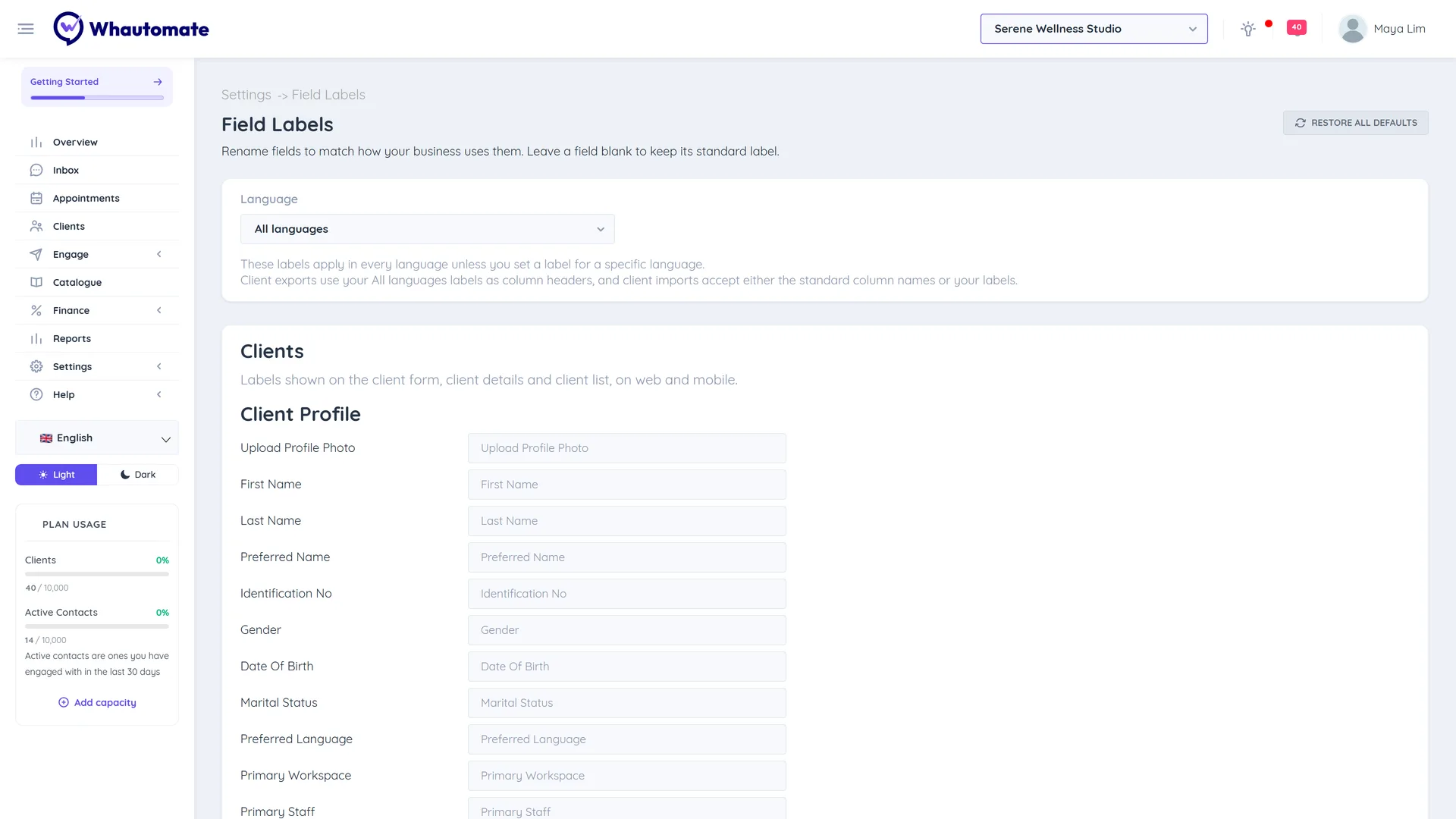
Field labels let you rename the standard client fields so the app speaks your business's language. A gym might rename Primary Staff to "Coach", a school might rename Client Id to "Student number", and a spa might rename Quick notes to "Treatment preferences". The new names appear wherever the field is shown to your team: the client list, the client profile and form, the mobile app, and client exports.
Before you start
- Only admins can change field labels.
- Labels change what your team sees. They do not change stored data, and existing filters, automations and integrations keep working.
Rename a field
- Go to Settings > Field Labels (under Data & Fields).
- In Language, keep All languages to rename the field in every language, or pick one language to rename it only when the app is used in that language.
- Find the field in its group (Client Profile, Contact Information, Company Information, Emergency Contact) and type the new label. The standard label is shown so you know which field it is.
- Click Save.
Restore a label
- Click Restore default next to a field to go back to its standard label.
- Click Restore all defaults to clear every label on the screen in every language.
- Leave a field blank to keep the standard label. A blank label in a specific language falls back to the All languages label.
Changes take effect when you click Save.
Rules and tips
- Each label must be unique within a language. Two fields with the same label are highlighted and cannot be saved.
- Client exports use your All languages labels as column headers.
- Client imports accept either the standard column names or your labels, so an exported file imports back without editing the headers.