Data Exports
Data Exports is the one place to download the files you export from Whautomate. When you export clients, form responses, WhatsApp Flow responses, client notes or a broadcast report, the file is built in the background so you can keep working. You get a notification when it is ready, and the file waits for you here.
The Data Exports page is on every plan. The client, form and WhatsApp Flow exports described here need CRM Suite.
Start an export
| What | Where you start it |
|---|---|
| Selected clients | Clients: select clients, then Export Client(s) |
| All clients | Clients: Export All Clients (admins only) |
| Web form responses | Form responses: Export All Responses or Export selected |
| WhatsApp Flow responses | Flow responses: Download all or Download selected |
| Client notes | Client profile, Notes tab: select notes, then Export |
| Broadcast report | Broadcast detail: export |
| Contacts, services, products, orders, automation rules, class participants | The export button on that screen |
After you start an export, a message offers Go to Export. You can also open the page any time from Settings > Data Exports (under Logs & Exports).
Download an export
- Go to Settings > Data Exports.
- Pick the tab:
- Client Notes Export for client notes
- Broadcast Export for broadcast reports
- Other Exports for everything else, including clients, form responses and WhatsApp Flow responses
- Find the row by Export Type, Item, Requested by and Requested At.
- Click Download export file in the Download column. If there is no download button yet, the export is still being prepared.
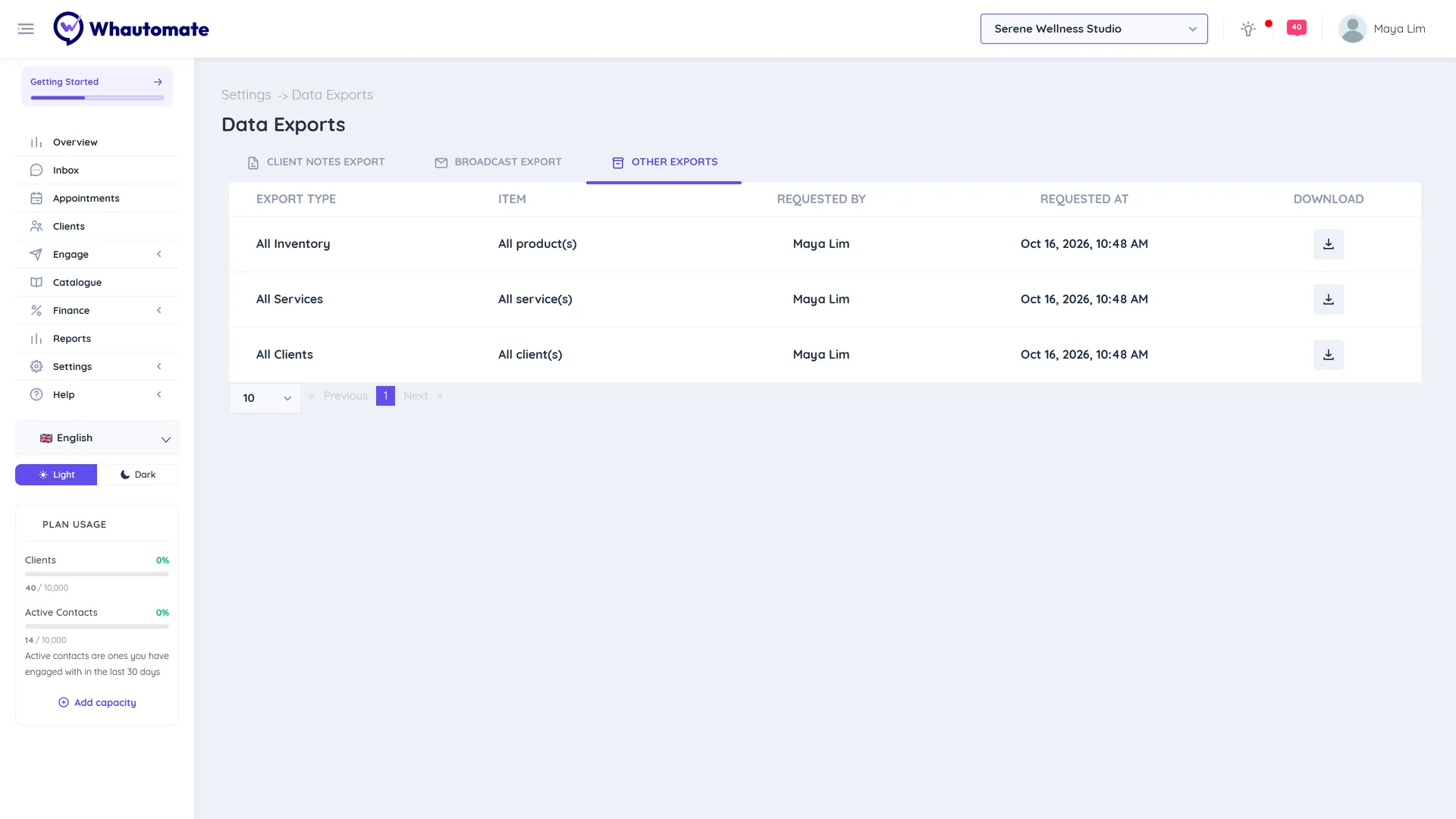
Limits
- Only one export of the same type runs at a time for a workspace. If one is in progress, wait for it to finish before starting another.
- All Clients, All Contacts, All Inventory and All Services can each be exported once per week. Download the previous file from Other Exports in the meantime.
- Exported form and WhatsApp Flow responses include links to uploaded files that work for 7 days after the export.
- Client exports use your field labels as column headers.
Services and products exports
Services and products exports use the same columns, in the same order, as the matching import, so you can edit a file and import it back:
- Services: one row per variant, with Regular Price (Optional) (the price before a sale), Variant Name (Optional), Staff Prices (Optional) and Staff Credits (Optional). Staff prices and credits are written as
StaffID:valuepairs separated by|. A service without variants is one row. - Products: every product import column, including the description, the online store switch and regularPrice (the price before a sale). Image columns are left blank, which keeps the product's images on import.
Cost prices are no longer exported or imported.