Client List
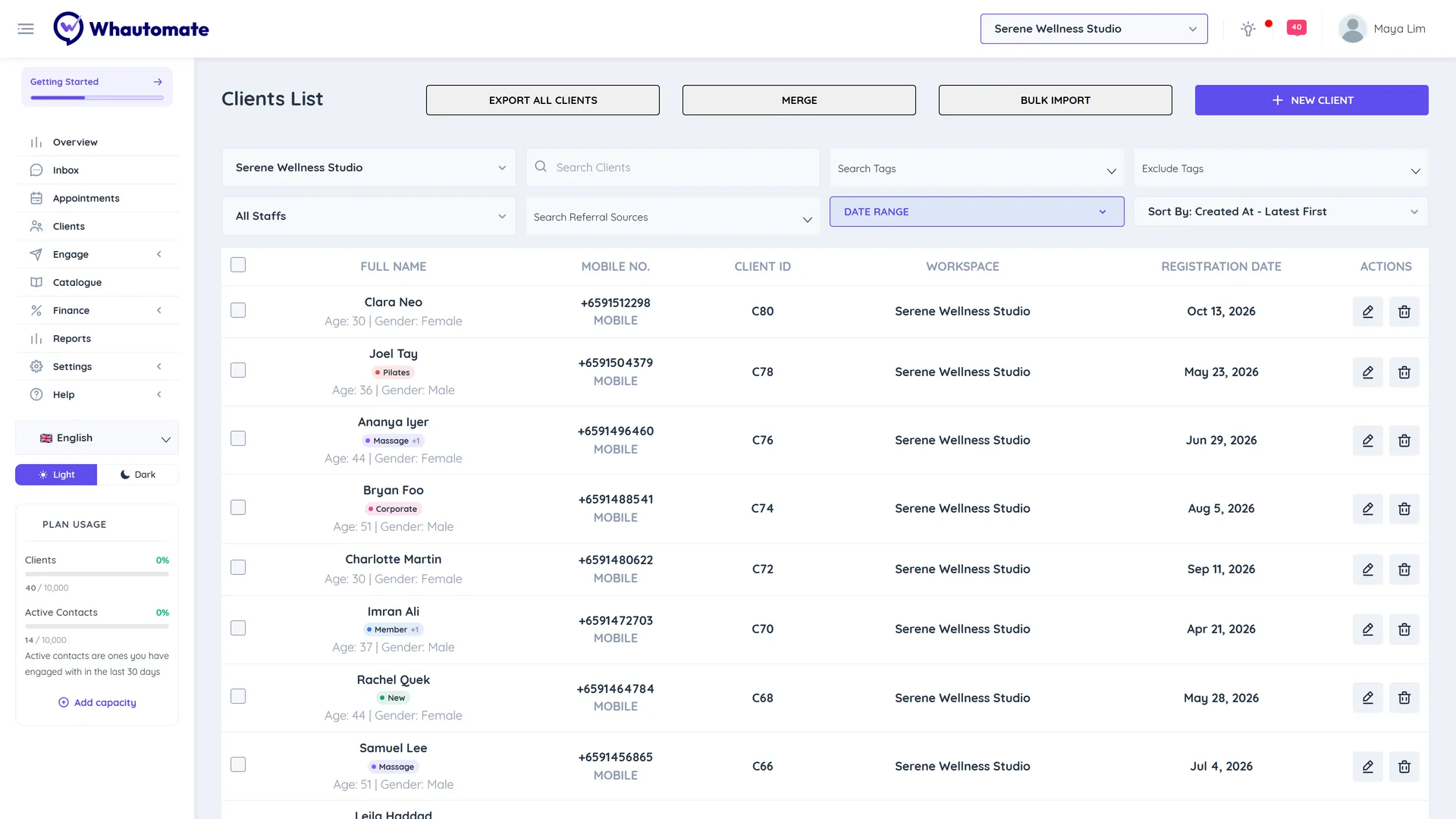
The Clients List is where you find, filter and act on your clients. Use it to look up a client by name or phone, to build a quick list (for example every client tagged VIP registered this month), to tag or untag many clients in one go, to merge duplicate records and to export clients to a spreadsheet.
Before you start
- You need CRM Suite on your plan. Team members with only Bookings or Sales can still open a single client from a booking or invoice, but not the list.
- Export All Clients is shown to admins only.
Find clients
- In the main menu, click Clients.
- Type in Search Clients to search by name, preferred name, client ID, identification number or phone number.
- Narrow the list with the filters:
- Workspace: the first dropdown. Choose a workspace, or All Workspaces.
- Search Tags: shows clients that have any of the selected tags.
- Exclude Tags: hides clients that have any of the selected tags.
- Choose Staff: shows clients whose primary staff is that team member, or All Staffs.
- Search Referral Sources: shows clients from the selected referral sources.
- Date Range: filters by registration date. Pick Today, This Week, This Month or a start and end date, then click Apply.
- Use the Sort By dropdown to order by Created At - Latest First, Created At - Oldest First, Name - A to Z or Name - Z to A.
- Click a client's name, or the Edit Client icon, to open the profile.
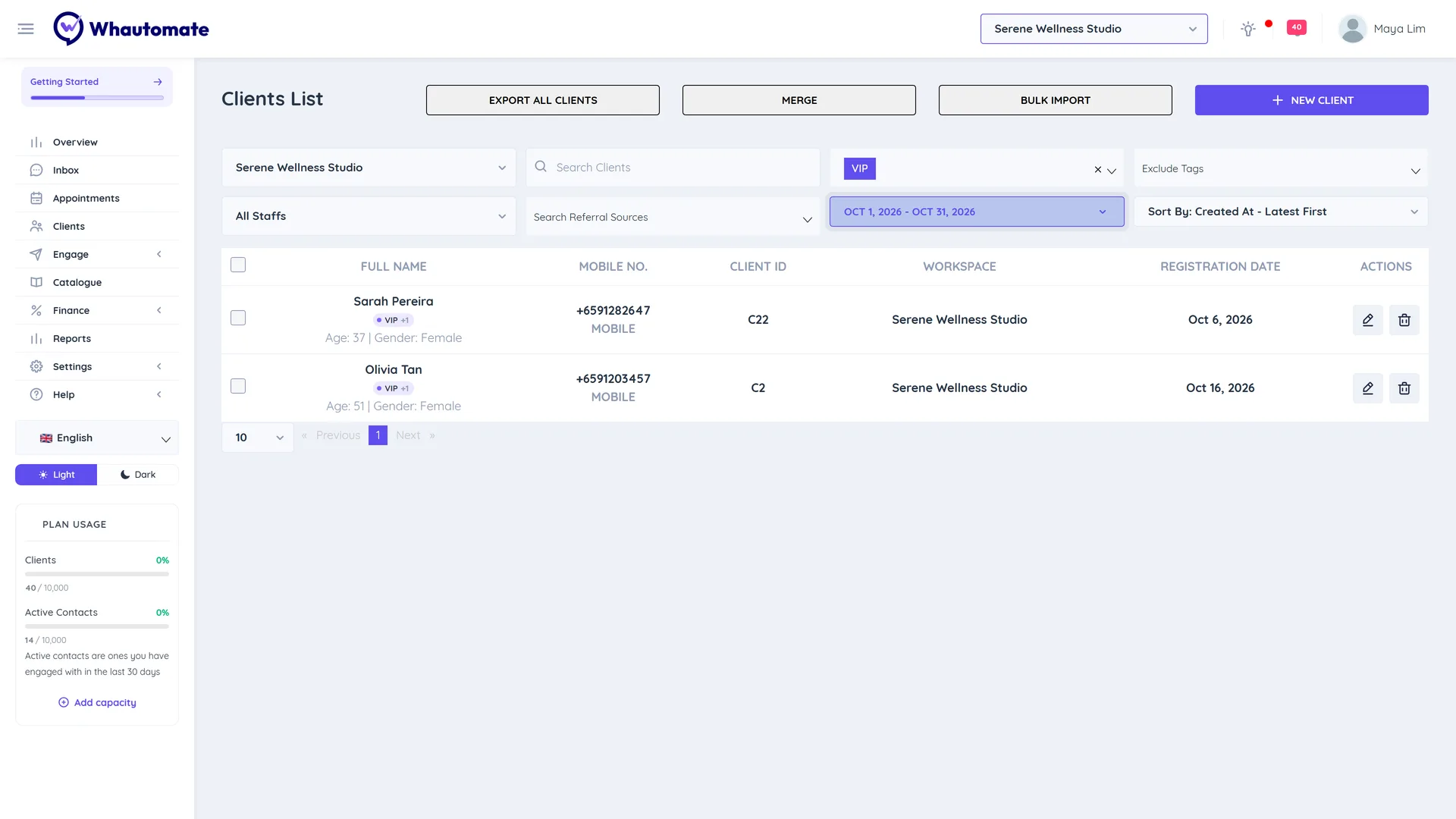
Your search, filters, sort order and page are kept when you open a client and come back, and when you return to Clients later in the same browser. They are cleared when you log out. A filter that points to a tag, referral source or team member that no longer exists is dropped automatically.
Act on several clients at once
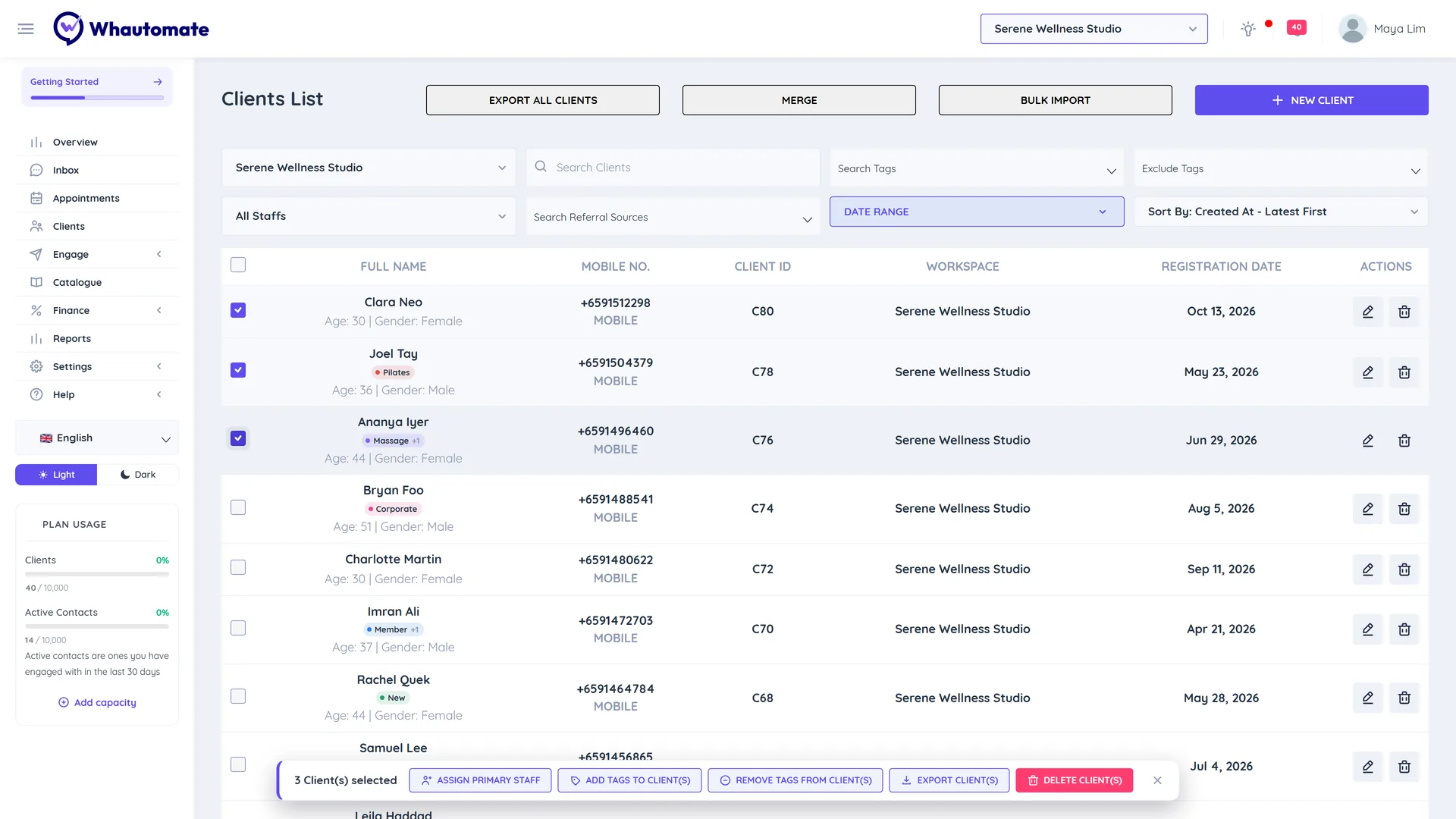
- Tick the checkbox next to each client, or tick the header checkbox to select every client on the page.
- A bar appears at the bottom showing how many clients are selected. Choose an action:
- Assign Primary Staff: pick a team member in Staff and click Save.
- Add Tags to Client(s): pick existing tags or type a new tag name, then click Save.
- Remove Tags from Client(s): pick the tags to remove and click Save.
- Export Client(s): creates an export of the selected clients (see below).
- Delete Client(s): deletes the selected clients after you confirm.
Tags drive segments, broadcasts and automations. A client tagged Yoga can be picked up by a "Yoga members" segment and messaged in a broadcast. See Segmentation and broadcasts.
Export clients
Exports are prepared in the background, so you can keep working.
- To export some clients, select them and click Export Client(s). To export everyone, click Export All Clients at the top and confirm.
- A message confirms the export is processing. Click Go to Export, or open Settings > Data Exports later.
- When the file is ready you get a notification. Download it from the Other Exports tab.
Export All Clients can be run once per week. Only one export of the same type runs at a time for a workspace. Column headers use your field labels. See Data exports.
Merge duplicate clients
Use this when the same person has two records, for example one from an online booking and one you added by hand.
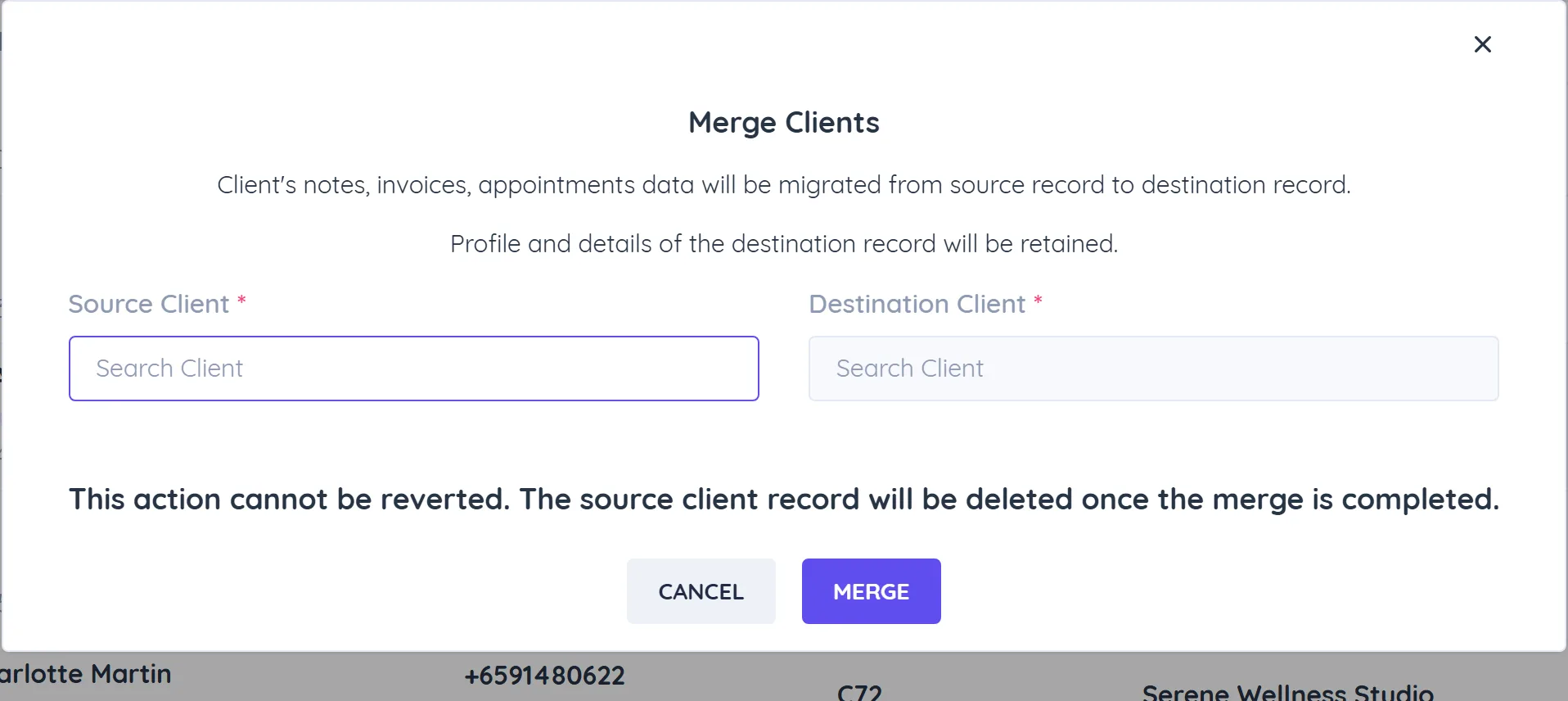
- Click Merge at the top of the list.
- In Source Client, search for the duplicate record you want to remove.
- In Destination Client, search for the record you want to keep.
- Click Merge.
The source client's notes, invoices and appointments move to the destination client. The destination client's profile and details are kept, and the source record is deleted. This cannot be undone.
Related
- Client details
- Bulk import clients
- Manage data lists for tags and referral sources
- Data exports
- Segmentation and broadcasts