Manage Class Participants
The Class Detail page is your roster for one class session. It shows who is booked and who is waiting, lets you add people who sign up at the desk, and is where you take attendance after the class. Each participant has their own status, so one person cancelling does not affect the rest.
A scheduled class. See Setup Classes.
Open a class
Click the class on the Appointments calendar, or open the class service's Classes tab and choose View Class Details.
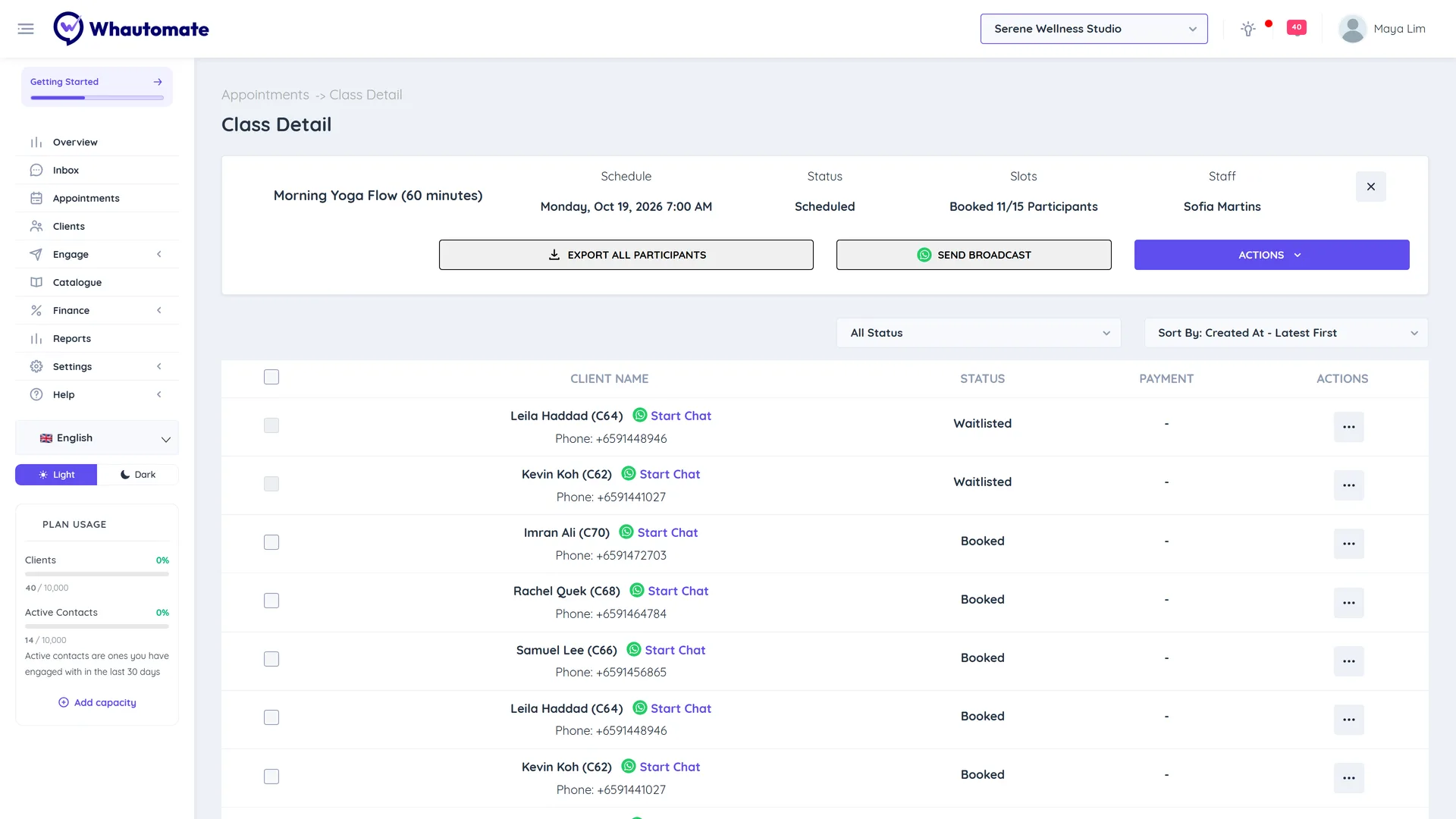
The summary at the top shows the Schedule, Status, Slots ("Booked 6/15 Participants") and Staff. Below it is the participants list with Client Name, Status, Payment (Paid online, Invoiced or Redeemed credits) and Booked from (for example WhatsApp, Telegram, Online Portal or Admin Portal). A Contact not verified badge next to a name means verification codes could not be sent when that guest booked online. See Confirm Guest Contact Details.
Add participants
- Click Actions > Add Participant.
- Search and select the Client, or click Create new Client.
- Optional:
- Add to Waitlist: put them on the waitlist instead of booking a spot.
- Add to this and Future Classes: book them into every later session of a recurring class.
- Apply Credits: use credits from the client's plan.
- Click Save.
To add a whole group, use Actions > Add Batch and pick a Class Batch. See Setup Class Batches.
Participant statuses
| Status | Meaning |
|---|---|
| Booked | Has a spot. |
| Waitlisted | Waiting for a spot to open. |
| Rescheduled | Moved to this class from another time. |
| Visited | Attended. |
| No-Show | Did not attend. |
| Cancelled | Booking cancelled. |
The waitlist
When Enable Waitlist for Classes is on in Appointment Settings, clients who book a full class are added as Waitlisted. Without it, they are told the class is full.
- When a booked participant cancels, the longest-waiting participant is moved to Booked automatically. If they have credits that apply, the credits are used.
- To give someone a spot yourself, open their row menu and click Confirm Booking.
Send a message when someone moves off the waitlist with a class notification on Class Participant Status equals Booked.
Take attendance
- For one person, use the row menu: Mark as Visited or Mark as No-Show.
- For many, tick the participants and use Mark as Visited or Mark as No-Show in the bar that appears.
- When the class is over, click Actions > Mark as Completed.
Payments and credits
From a participant's row menu, Create Invoice bills them for the class (needs the Sales module) and Apply Credits uses their credits. Credits are returned when that participant's booking is cancelled.
Cancel bookings or classes
- One participant: row menu > Cancel. For recurring classes, Cancel Future Classes also removes them from later sessions. For participants added with a batch, use Cancel Batch or Cancel Batch (Future).
- The whole session: Actions > Cancel Class. For a recurring class, Cancel All Future Classes cancels the later sessions too.
Cancelling a whole class changes the class status only. Credits are not returned to participants automatically; cancel or refund individual bookings if needed.
Other actions
- Edit Class changes the time, instructor or capacity.
- Join Meeting opens the link of an online class.
- Export All Participants downloads the list, and Send Broadcast messages everyone in the class.
- Start Chat next to a participant opens a conversation in the inbox.